Split Excel Data into Separate Sheets with AI: 5,000 Rows
Split 5,000 Excel rows into six store worksheets with GetSheetAI. Keep headers, link the results to the master table, and update them when records change.
Real screenshots from a local developer demo using simulated data, not customer records. The original app interface is preserved. Short videos include sped-up processing.
Filter a store. Copy its rows. Create a tab. Paste. Repeat five more times. Then somebody changes an amount in the master sheet.
Splitting the data is only half the job. Keeping those copies in sync is the part that keeps coming back. In this GetSheetAI demo, 5,000 records became six store worksheets linked to one master table, so an edit did not mean another round of copying.
Quick answer: split by a column, keep one source
To split Excel data into separate sheets by a column value, identify the grouping column, create a worksheet for each existing group, and link each output to the source instead of pasting a static copy. GetSheetAI can set this up from a plain-English request inside Excel.
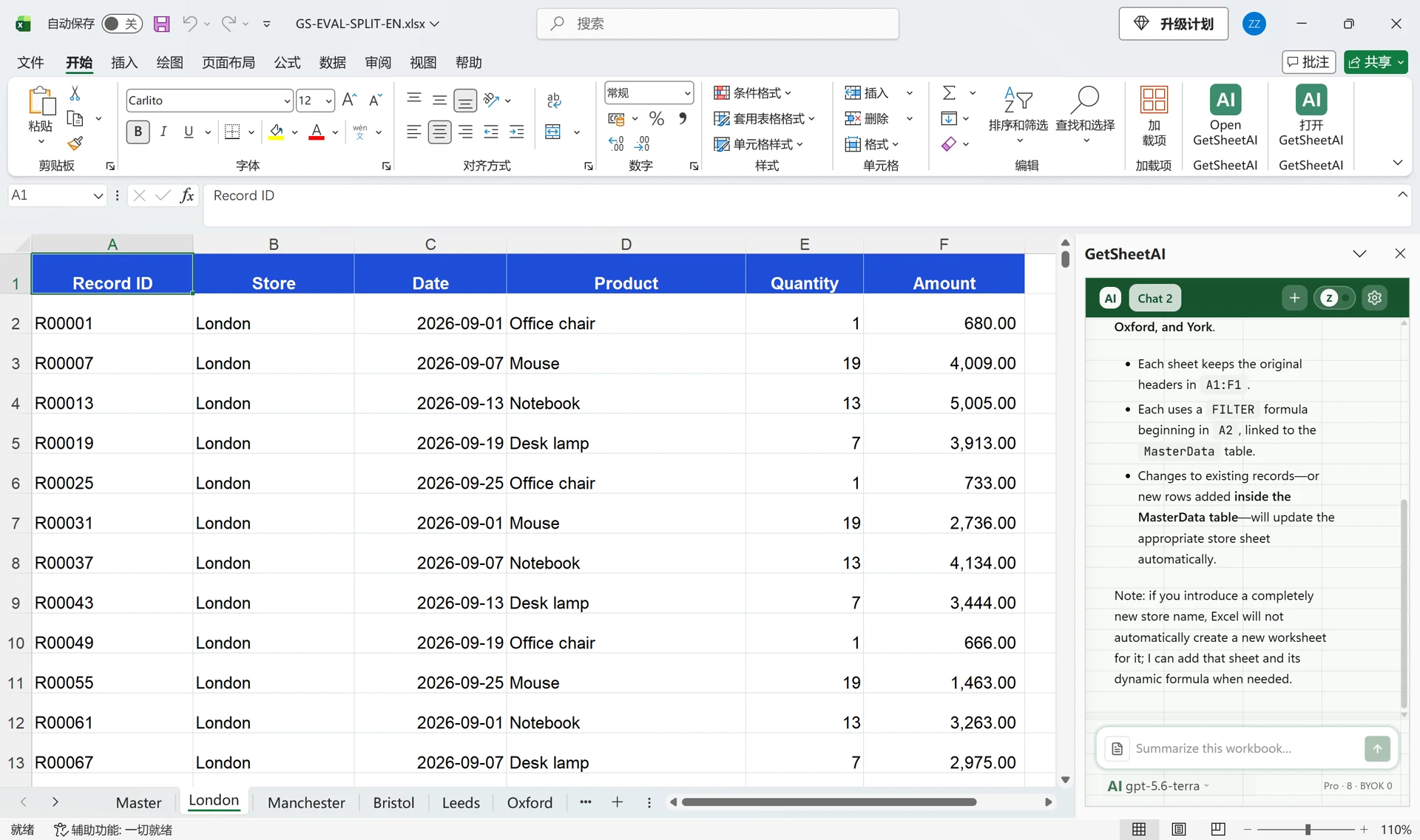
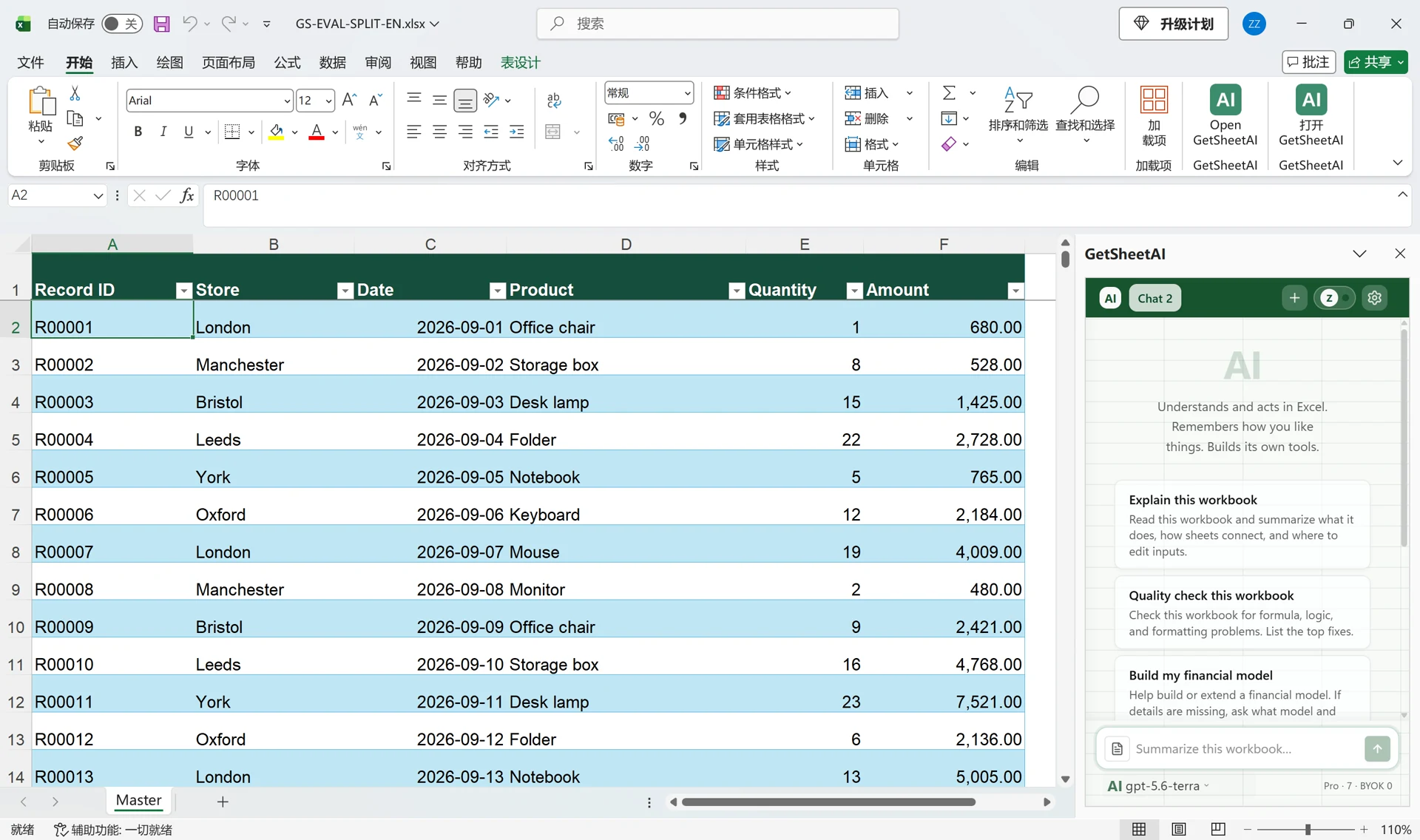
Our example groups records by Store. The master table contains Record ID, Store, Date, Product, Quantity, and Amount. The data is simulated; all three screenshots come from the actual English-language workbook recording. Excel's surrounding menus are in Chinese on the recording machine.
Tell GetSheetAI what you want
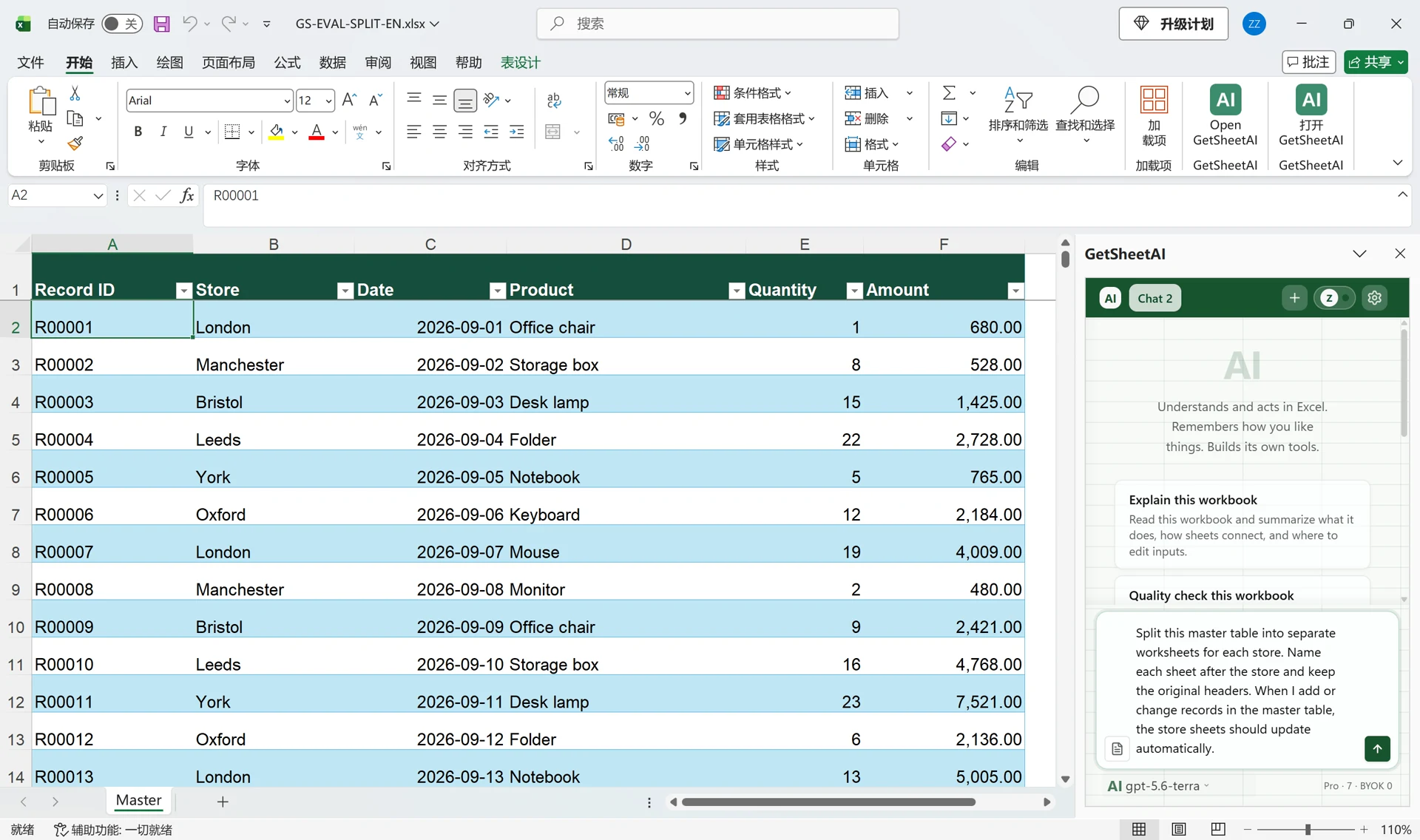
Open the master workbook and the GetSheetAI sidebar. This is the exact request used in the English recording:
Split this master table into separate worksheets for each store. Name each sheet after the store and keep the original headers. When I add or change records in the master table, the store sheets should update automatically.
No function names, cell addresses, or code were needed in the request. It describes the grouping rule, sheet names, headers, and what should happen after a change. You can replace “store” with your own grouping column, such as department or salesperson.
If one store appears under several spellings, standardize the names first. Otherwise those labels represent different groups.
What the six worksheets contain
The English demo produced these results:
| Store worksheet | Records |
|---|---|
| London | 834 |
| Manchester | 834 |
| Bristol | 833 |
| Leeds | 833 |
| York | 833 |
| Oxford | 833 |
| Total | 5,000 |
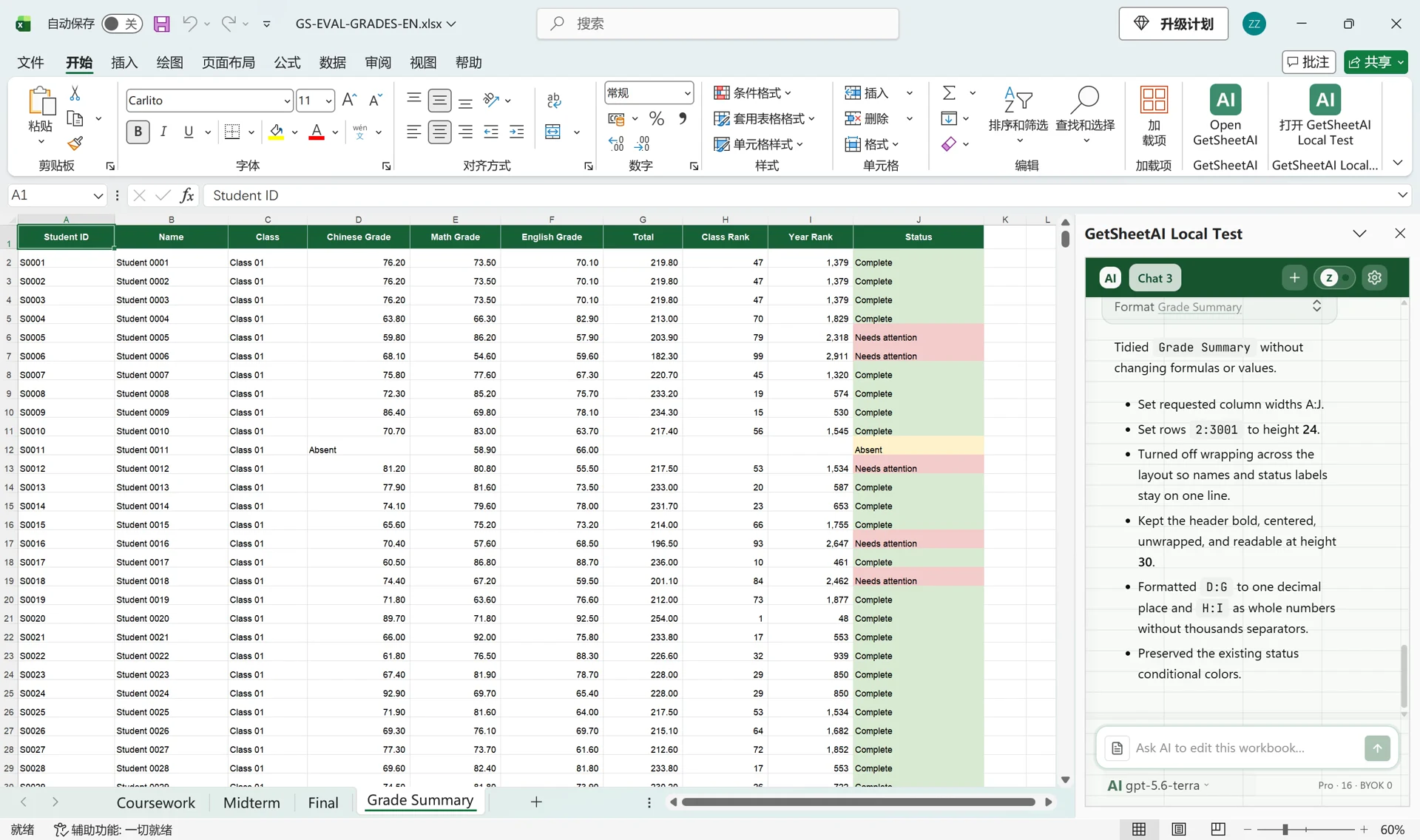
Each sheet retained the six original headers and the records for its store. Our saved demo checks compared every record and field across all six sheets: no records were omitted or duplicated by the split. Dates displayed as dates, and amounts retained their numeric formatting.
The output uses Excel FILTER formulas linked to the MasterData table. This is a working workbook, not six screenshots or six pasted lists.
Change an amount, then add a record
We demonstrated two everyday updates after creating the sheets:
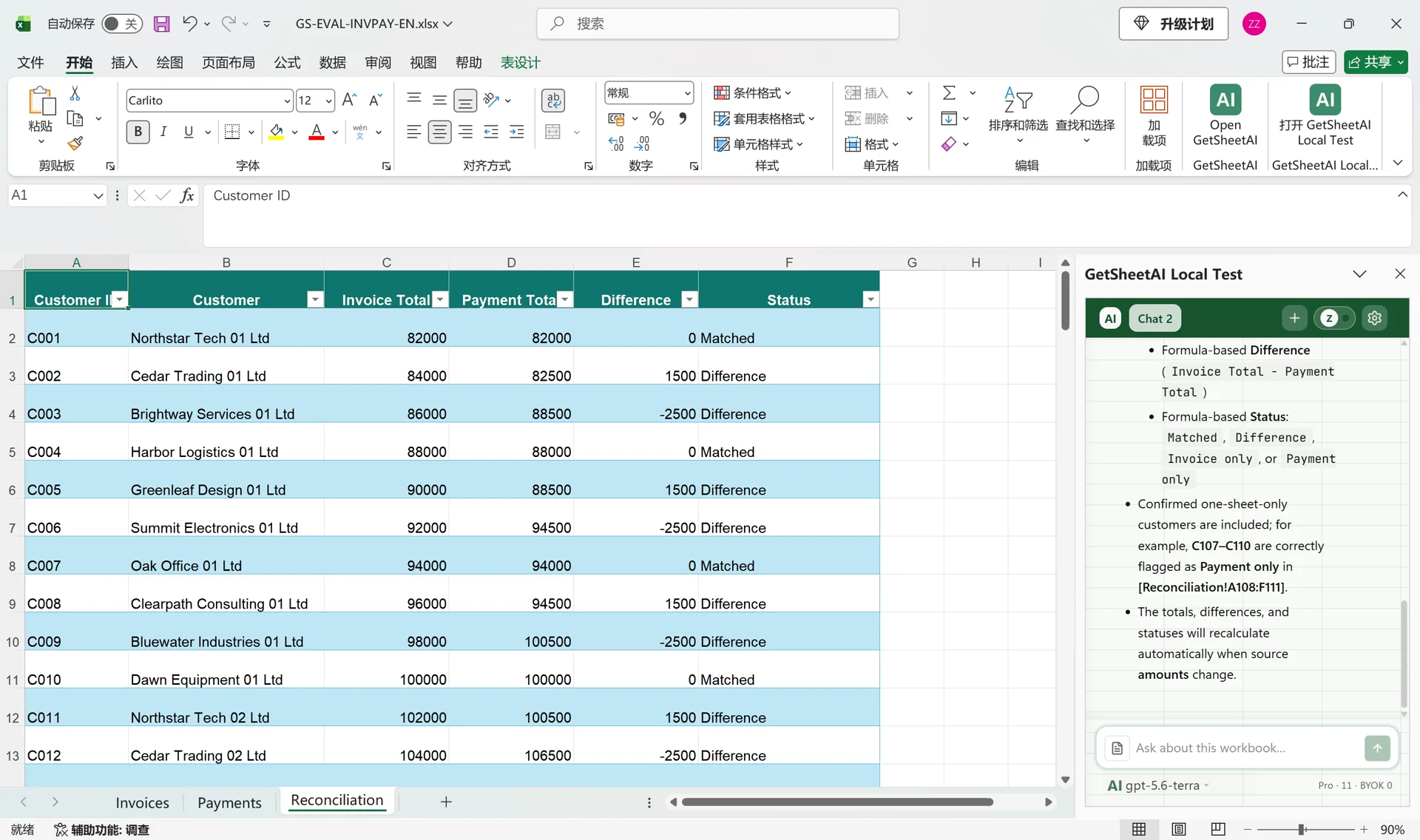
- Edit an existing record: change the first record's amount from 680 to 980 in the master table. Its London-sheet amount updates too.
- Add a record: append record 5,001 to the source table for an existing store. The corresponding store sheet gains that record.
The demo then restores the original data. These update checks passed across the six outputs. You maintain the master table rather than editing each store's copy, and Excel recalculates the linked results without another AI request for the demonstrated changes.
Keep the workflow easy to maintain
Add records inside the source table and keep the formula output areas clear. Microsoft documents table references that adjust with added rows and dynamic-array spill behavior. Use an Excel version that supports FILTER, such as Microsoft 365 or Excel 2021/2024.
The demonstrated setup covers the six existing stores. A completely new store needs its own worksheet and linked formula; you can ask GetSheetAI to add it. These are separate tabs in one workbook, not separate files or an automatic email distribution system. The recording also checks dates on the appended row; that is not a promise of unlimited formatting extension.
Less copying, more useful views
This is a good fit when different teams need their own view of the same master list. Keep one place to enter data, then use the generated sheets to view each group's records.
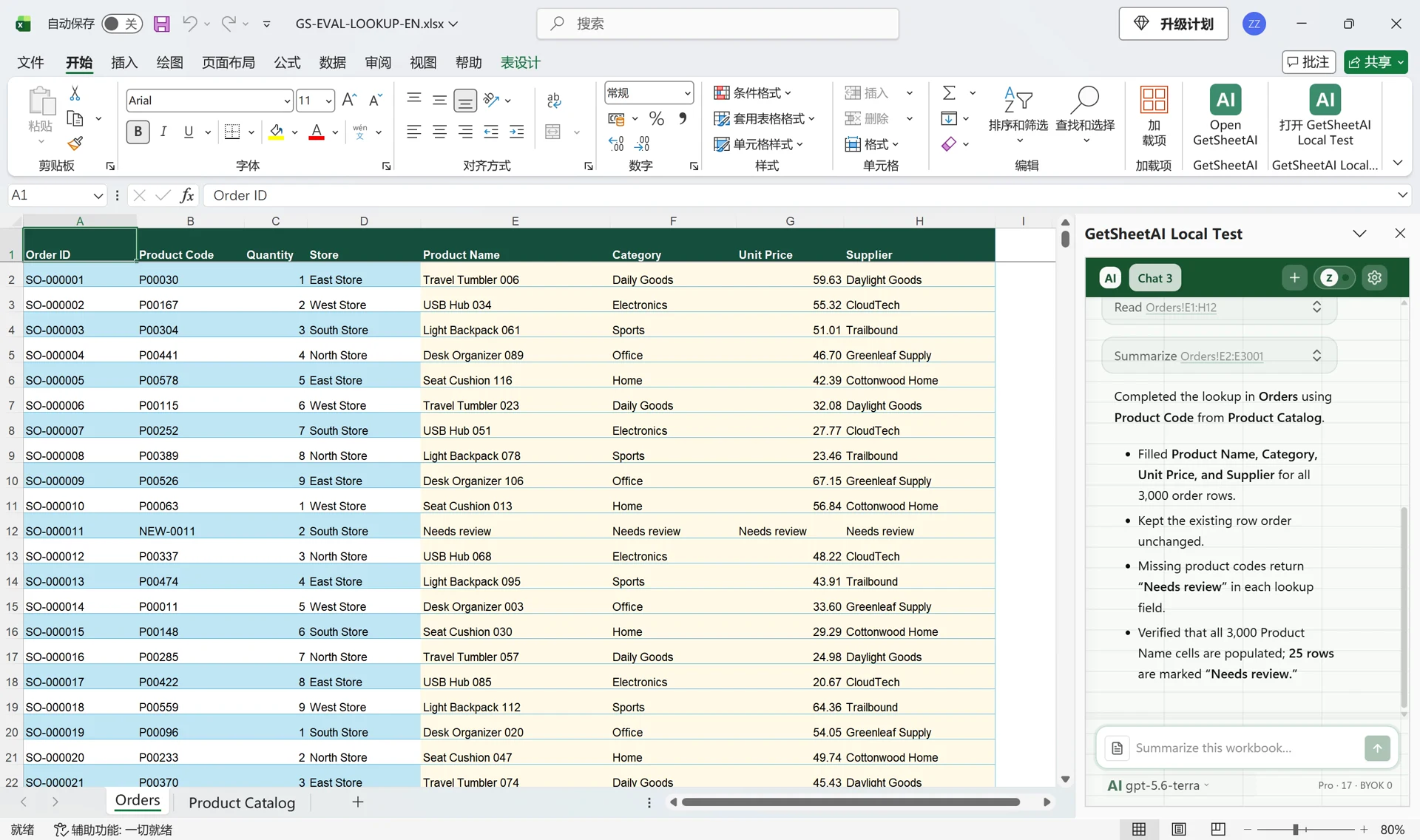
Working in the opposite direction? See merging Excel files into one table. Need to bring extra fields into the master list first? See matching four columns across 3,000 orders.
The benefit is fewer repeated filters, fewer copied tabs, and less effort keeping routine views current. The short promotional video speeds up processing; its running time is not a benchmark for completing the task.