Reconcile Invoices and Payments in Excel with AI
Turn 4,000 invoice and payment rows into a filterable Excel reconciliation table with GetSheetAI: 110 customers, SUMIFS totals, and live differences.
Real screenshots from a local developer demo using simulated data, not customer records. The original app interface is preserved. Short videos include sped-up processing.
One sheet says what you invoiced. Another says what came in. The useful question is simple: which customers balance, and where is there a difference?
To reconcile invoices and payments in Excel, combine the customer IDs from both sheets, total each customer's invoices and receipts, then subtract payments from invoices. GetSheetAI can build that workflow from a written instruction, including formulas and a filterable results table, inside the workbook.
In this developer demo, we used 2,000 invoice rows and 2,000 payment rows. The result covered 110 unique customers, including customers appearing on only one side. All source values stayed unchanged during reconciliation.
Start with two transaction sheets, not two matching row lists
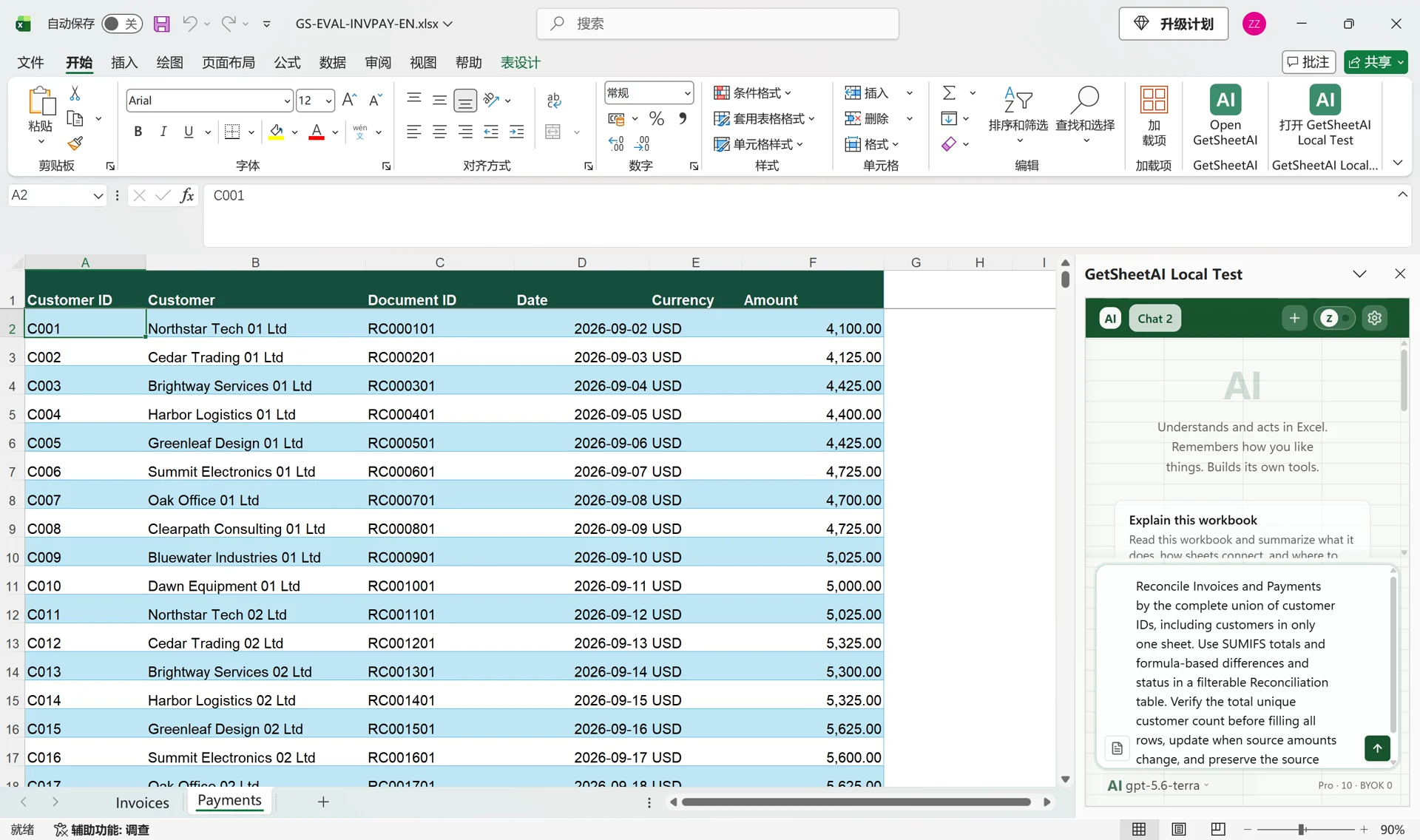
The workbook contains Invoices and Payments. Both have a customer ID, customer name, document ID, date, currency, and amount. One customer can have many records, so matching row 2 to row 2—or returning the first matching amount—is not enough.
The customer list must come from both sheets. Starting only with the invoice list can leave out a customer who has a payment but no invoice in this dataset. Starting only with payments has the reverse problem.
This example uses a single currency. For a multi-currency workbook, specify customer and currency as the grouping keys rather than adding different currencies together. The data shown here is simulated; the screenshots are real captures from our local Excel test.
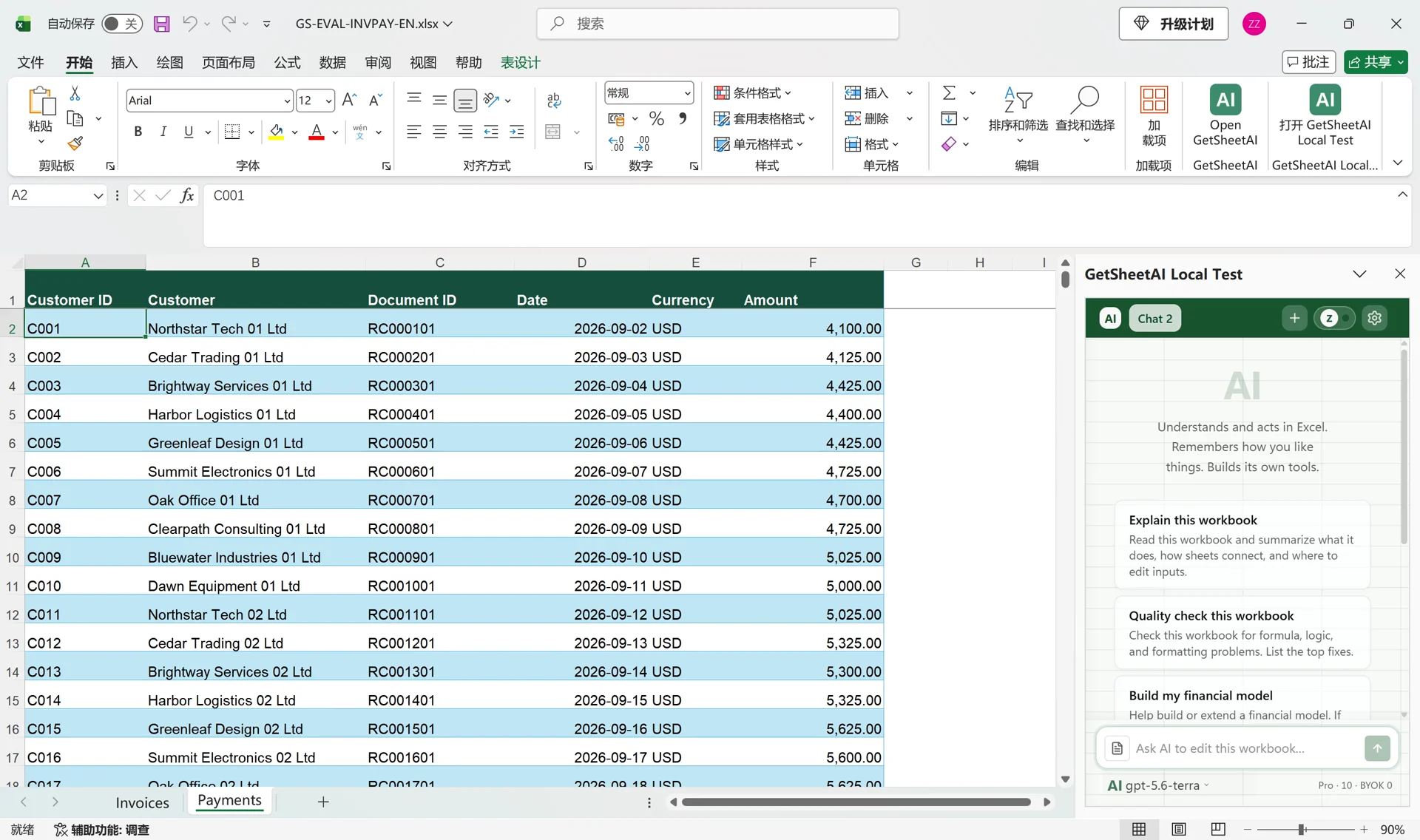
The instruction we sent to GetSheetAI
Open the workbook and the GetSheetAI pane in Excel. Here is the actual English request from the recording:
Reconcile Invoices and Payments by the complete union of customer IDs, including customers in only one sheet. Use SUMIFS totals and formula-based differences and status in a filterable Reconciliation table. Verify the total unique customer count before filling all rows, update when source amounts change, and preserve the source sheets.
The request defines the matching key, coverage, calculations, output, and source preservation together. You do not need to build the customer list, copy down each formula, and configure every filter yourself.
Read the reconciliation table
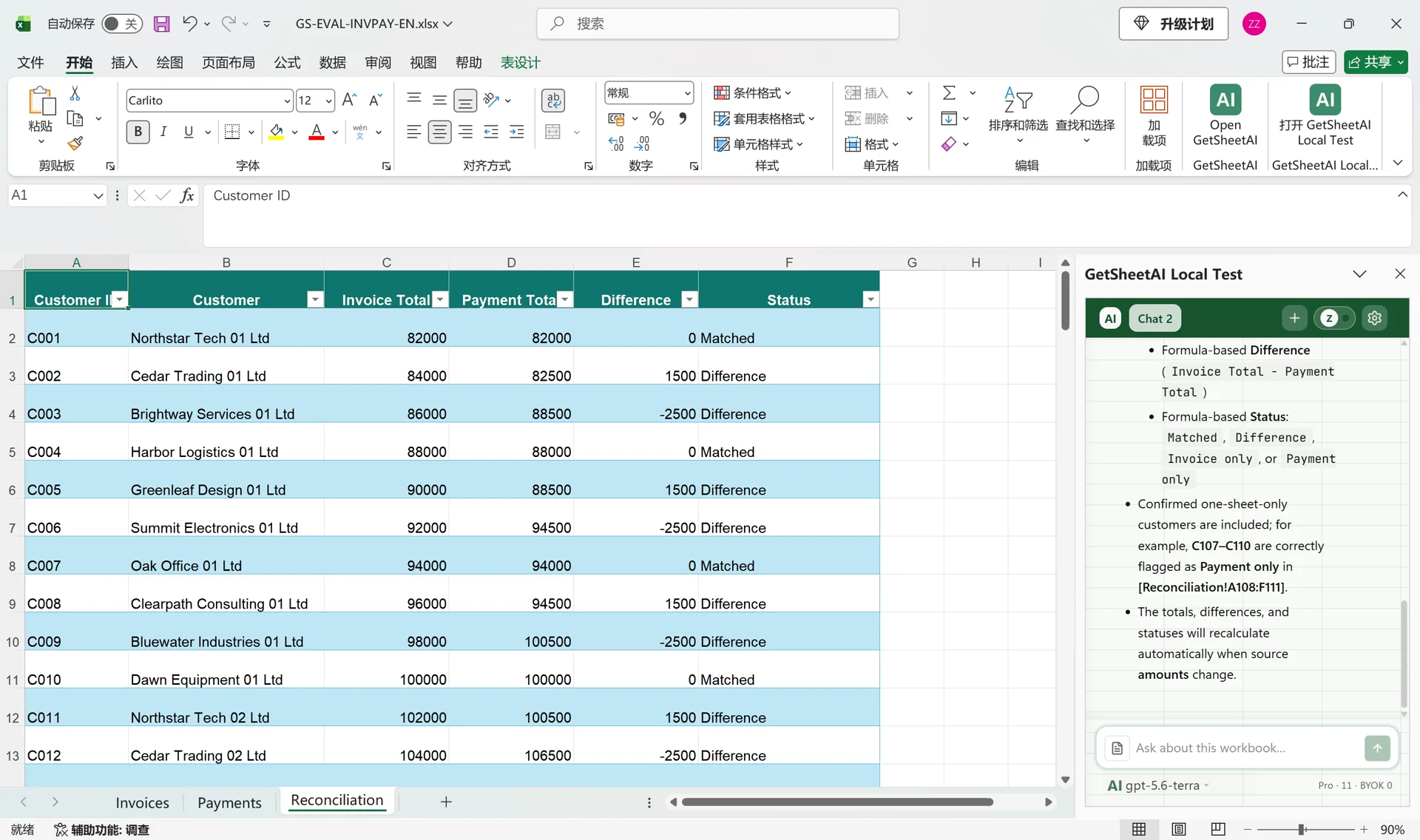
GetSheetAI created a new Reconciliation sheet with these columns:
| Column | What it shows |
|---|---|
| Customer ID and Customer | The customer represented by that row |
| Invoice Total | SUMIFS total from the invoice sheet |
| Payment Total | SUMIFS total from the payment sheet |
| Difference | Invoice Total minus Payment Total |
| Status | Matched, Difference, Invoice only, or Payment only |
The totals, difference, and status are formulas, not a pasted summary. In the demonstration, all 110 customer totals were checked against the source data. The table's filter buttons let you isolate nonzero differences or one customer's row without searching through 4,000 transactions.
This is customer-level reconciliation, not allocation of each receipt to an individual invoice. A difference identifies a balance to investigate; its sign alone does not establish that an invoice is overdue. If you need invoice-level matching, include invoice references and that requirement in the request.
Change one source amount and see the result update
For customer C001, invoice and payment totals initially both equaled 82,000, with a difference of 0 and status Matched.
In a separate demonstration step, we changed one existing payment from 4,100 to 5,600. The payment total recalculated to 83,500, the difference became −1,500, and the status changed to Difference. We then restored the original payment.
That is the practical advantage of keeping Excel formulas in the output: changing an amount already covered by the formulas does not require asking the AI to rebuild the same summary. Filtering the changed results showed 81 nonzero rows; filtering C001 showed one customer.
The test demonstrates updates to existing source amounts. It is not a claim that every future new row or new customer will be included without extending the relevant ranges.
Reuse the workflow for your next reconciliation
Name the source sheets, the customer key, the currency, and the period you want compared. Ask for a separate results sheet, clear status labels, and formula-based totals. For consistent comparisons, apply the same reporting period to both sources.
If customer IDs or amount formats need preparation, start with cleaning Excel data with AI. For a one-to-one lookup rather than grouped totals, see matching four columns across 3,000 orders. If the next task is a written summary, our Excel-to-Word report case shows that handoff.
The time-saving part is the repeated setup: collecting customers, writing totals, calculating differences, and turning the result into something filterable. Describe those rules once and let GetSheetAI build the working table.