Excel Lookup by Column Header: A Dynamic Employee Report
Look up Excel data by employee ID and column header. See how GetSheetAI builds 120 formula cells from 3,000 records, with real screenshots and a reusable prompt.
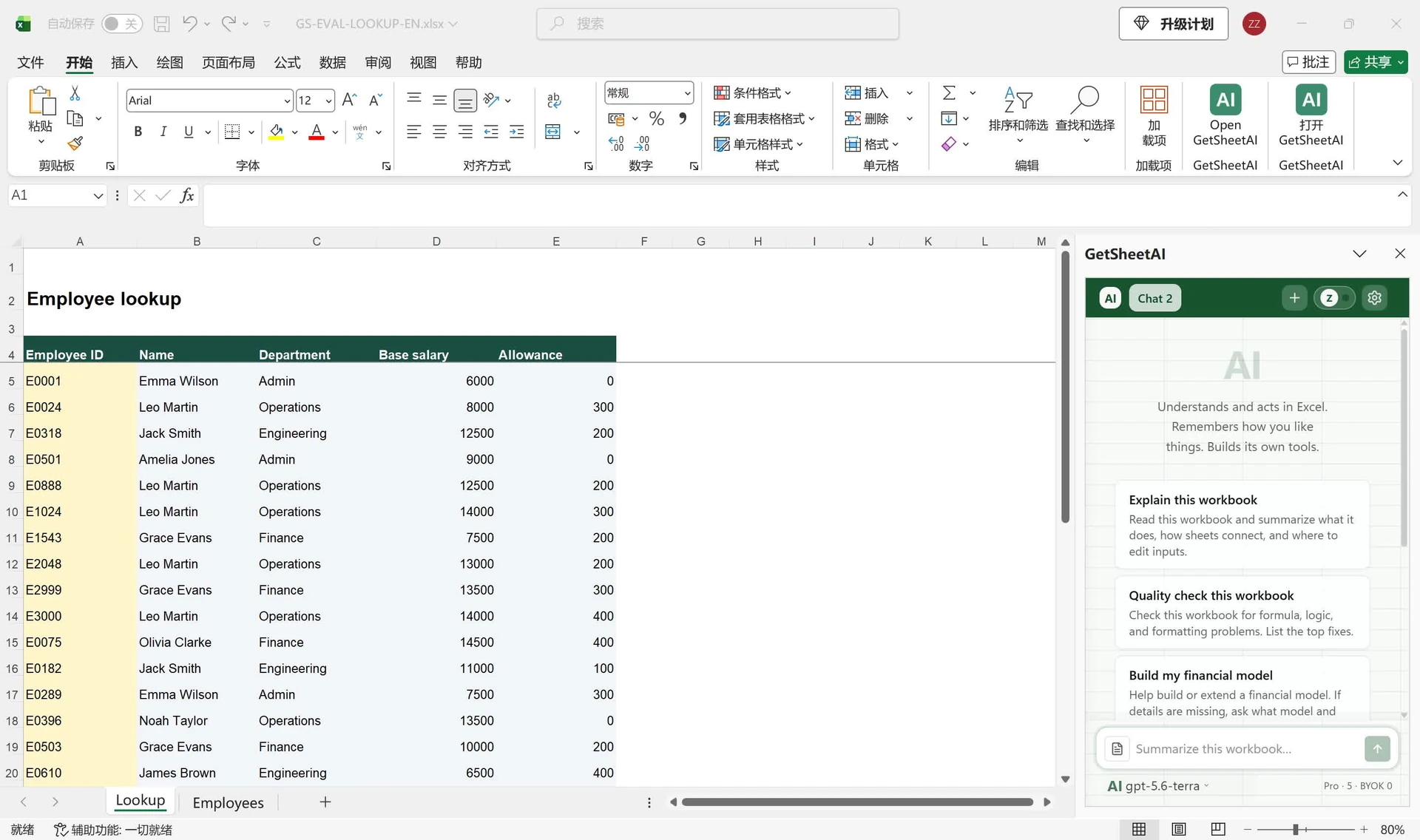
Real screenshots from a local developer demo using simulated data, not customer records. The original app interface is preserved. Short videos include sped-up processing.
▶ Watch the short demo on YouTubeChange an employee ID to see another person's details. Change a column header to pull a different field. That is a two-way lookup in Excel: one match chooses the row, another chooses the column.
This GetSheetAI demo starts with 3,000 employee records and an unfinished lookup sheet. A plain-English request fills four requested fields for 30 IDs with formulas, so the report stays connected to its source instead of becoming a pasted snapshot.
The result: 120 formula cells that follow IDs and headers
The completed Lookup sheet returns Name, Department, Base salary and Allowance. For example, employee E0001 returns Emma Wilson, Admin, 6000 and 0. The zero allowance stays zero; it is not a missing match.
| Recorded check | Result |
|---|---|
| Formula coverage | All 120 output cells contained formulas |
| Change an employee ID | The corresponding results updated |
| Change requested headers | Results followed the new source fields |
| Enter an unknown ID | The output showed Not found |
| Compare the source sheet | Employees was unchanged |
These checks belong to this developer demo using synthetic records. The screenshots show the English workbook in Excel with Chinese menus. Recorded processing took about 121 seconds; the roughly 59-second video speeds up waiting time.
Set up the source and lookup sheets
The workbook has two sheets:
- Employees: eight source columns, headers in A4:H4 and 3,000 employee records in A5:H3004. Column A holds the employee ID.
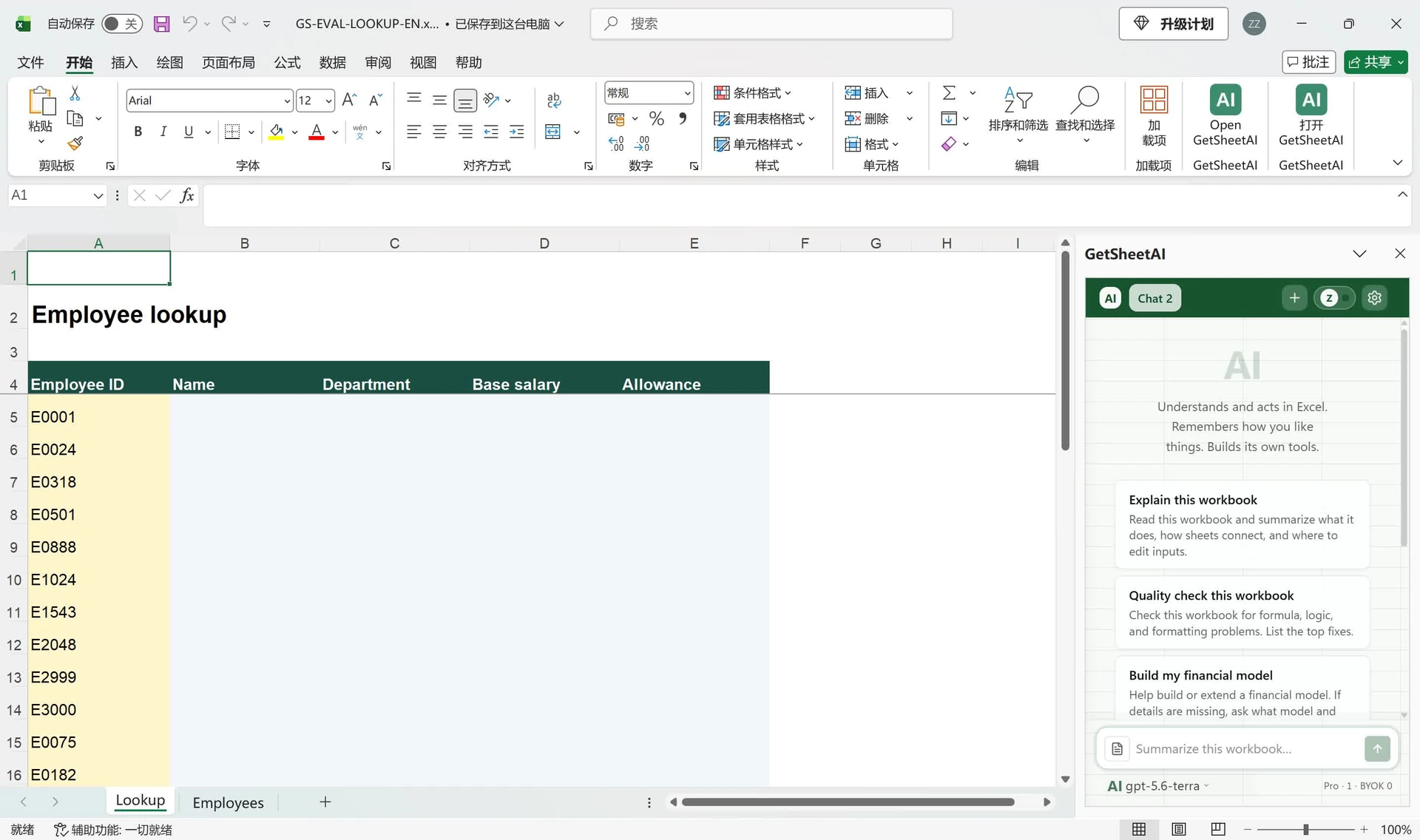
- Lookup: IDs in A5:A34 and four requested headers in B4:E4. B5:E34 starts empty.
Use unique employee IDs and unique column headers. Requested headers must exist in the source, with consistent spelling. Matching by ID is more dependable than matching by name because two employees can share a name.
The 3,000 figure describes the source table, not the number of output rows. This report requests 30 IDs, including an intentionally nonexistent ID to demonstrate the missing-match response.
Ask GetSheetAI to build the formulas
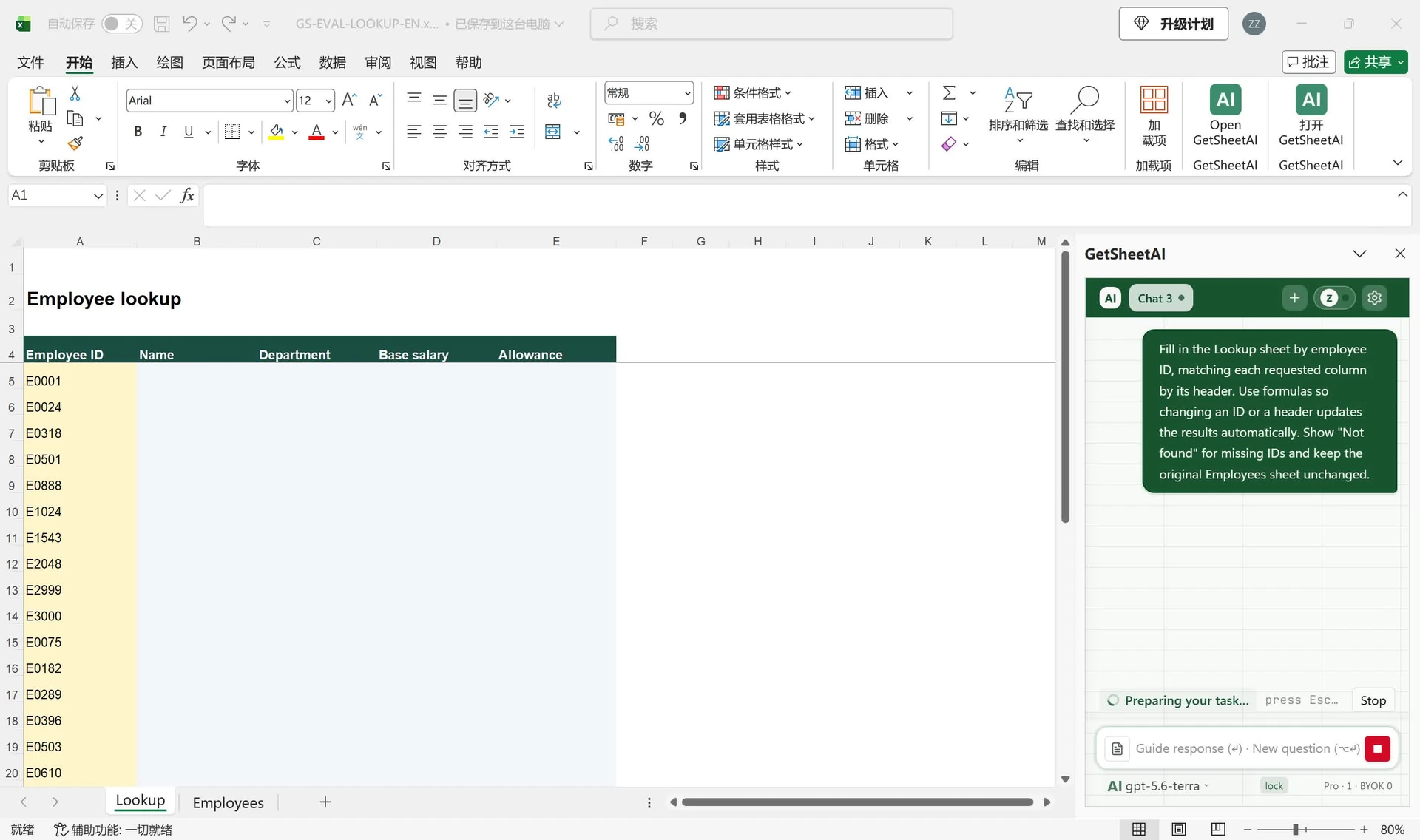
Open the workbook and the GetSheetAI sidebar. This was the actual English request:
Fill in the Lookup sheet by employee ID, matching each requested column by its header. Use formulas so changing an ID or a header updates the results automatically. Show "Not found" for missing IDs and keep the original Employees sheet unchanged.
The important details are the two matching rules, formula output and where changes should go. You do not need to specify a different formula for each return column.
Download GetSheetAI for Excel to try this workflow with your own reference table. For the basics, start with what AI for Excel does.
How a two-way lookup formula works
If you prefer to build this manually, the following illustrative alternative uses INDEX and two exact MATCH operations. It is not a transcription of the formula generated in the recording. Enter it in Lookup!B5, fill across to E5, then down to row 34:
=IFNA(INDEX(Employees!$A$5:$H$3004,MATCH($A5,Employees!$A$5:$A$3004,0),MATCH(B$4,Employees!$A$4:$H$4,0)),"Not found")
$A5 selects the employee; B$4 selects the field. The mixed references keep the ID column fixed when filling across and the header row fixed when filling down. The source ranges stay fixed in both directions.
In this formula, Not found can mean a missing ID or a missing header; IFNA also catches a source #N/A. Other formula errors remain visible. A blank source cell can return zero, so it is not the same as an unmatched ID. See XLOOKUP not found and zero results for those distinctions.
Reuse the report without rebuilding it
Change a lookup ID or replace a requested header with another source header: existing formulas should recalculate without another AI request. That is the efficiency gain here—the AI helps set up the repetitive formula work, and Excel handles subsequent recalculation.
The same layout suits product IDs and prices, customer IDs and account fields, or order IDs and delivery details. If new source rows are added beyond row 3004, extend these fixed ranges or use an Excel Table with appropriate structured references. Formula-driven does not automatically mean an unlimited source range.
For related tasks, see matching four columns or filling missing values from another sheet.
FAQ
Can Excel look up a value using both an ID and a column heading?
Yes. Match the ID to select the row and the heading to select the return column. INDEX with two MATCH functions is one way to do it; an AI assistant can help create formulas for the actual workbook layout.
Will changing the header update the result?
Yes, when the formula references that header and it matches a field in the source. Typing a new label that does not exist in the source will not create a new source field.
Does this require asking the AI again for each employee?
No. Once the formulas are in place, changing an input ID triggers Excel recalculation. A different workbook layout or a changed source range may require adjusting the formulas.