XLOOKUP Not Found or Returning 0 in Excel: How to Fix It
Make XLOOKUP return a blank or Not found for missing matches. Learn why it returns 0, handle empty lookup cells, and choose IFNA or IFERROR with examples.
If XLOOKUP cannot find an exact match, use its fourth argument, if_not_found, to return a message or blank. Do not add IFERROR just to hide #N/A: it also hides other formula errors that may need fixing.
If XLOOKUP returns 0, that is a different question: it may have found a real zero or a matching row with an empty return cell. The missing-match argument does not change either case. Start by separating these situations instead of wrapping everything in IFERROR.
Quick answer
Use XLOOKUP's if_not_found argument or IFNA when a missing match is expected. Use IFERROR only when every possible error from the wrapped expression should share the same fallback. For zero denominators and other known conditions, test the condition directly with IF; it documents the reason and leaves unrelated errors visible.
| Situation | Recommended pattern | Why |
|---|---|---|
| Lookup may have no match | XLOOKUP(...,"Not found") |
Handles only the expected miss |
| VLOOKUP/INDEX-MATCH may miss | IFNA(formula,"Not found") |
Keeps #REF! and #VALUE! visible |
| Denominator may be zero | IF(B2=0,"",A2/B2) |
Tests the real condition |
| Any failure truly means the same thing | IFERROR(formula,fallback) |
Appropriate broad catch |
Return a message or blank when XLOOKUP finds no match
With a product key in A2 and a reference table in Prices!A2:B100, choose one of these formulas:
=XLOOKUP(A2, Prices!$A$2:$A$100, Prices!$B$2:$B$100, "NOT FOUND")
=XLOOKUP(A2, Prices!$A$2:$A$100, Prices!$B$2:$B$100, "")
The second formula returns an empty string, not a truly empty cell. Neither formula replaces a genuine zero found in the source. For a report you need to audit, prefer a visible status or keep a separate missing-match count rather than hiding unresolved rows.
Why does XLOOKUP return 0 instead of a blank?
| What happened | What to change |
|---|---|
| The key has no match | Set the fourth argument to "Not found" or "" |
| The key matches, but its return cell is empty | Check that source cell; the fourth argument does not handle this |
| The matched value really is zero | Keep the zero; it is a valid result |
| The input key is blank | Test the input before running the lookup |
To leave the output blank until A2 has a key, use:
=IF(A2="", "", XLOOKUP(A2, Prices!$A$2:$A$100, Prices!$B$2:$B$100, "Not found"))
This skips an empty input; it does not erase zeros from matched source records. A space in A2 is not an empty input.
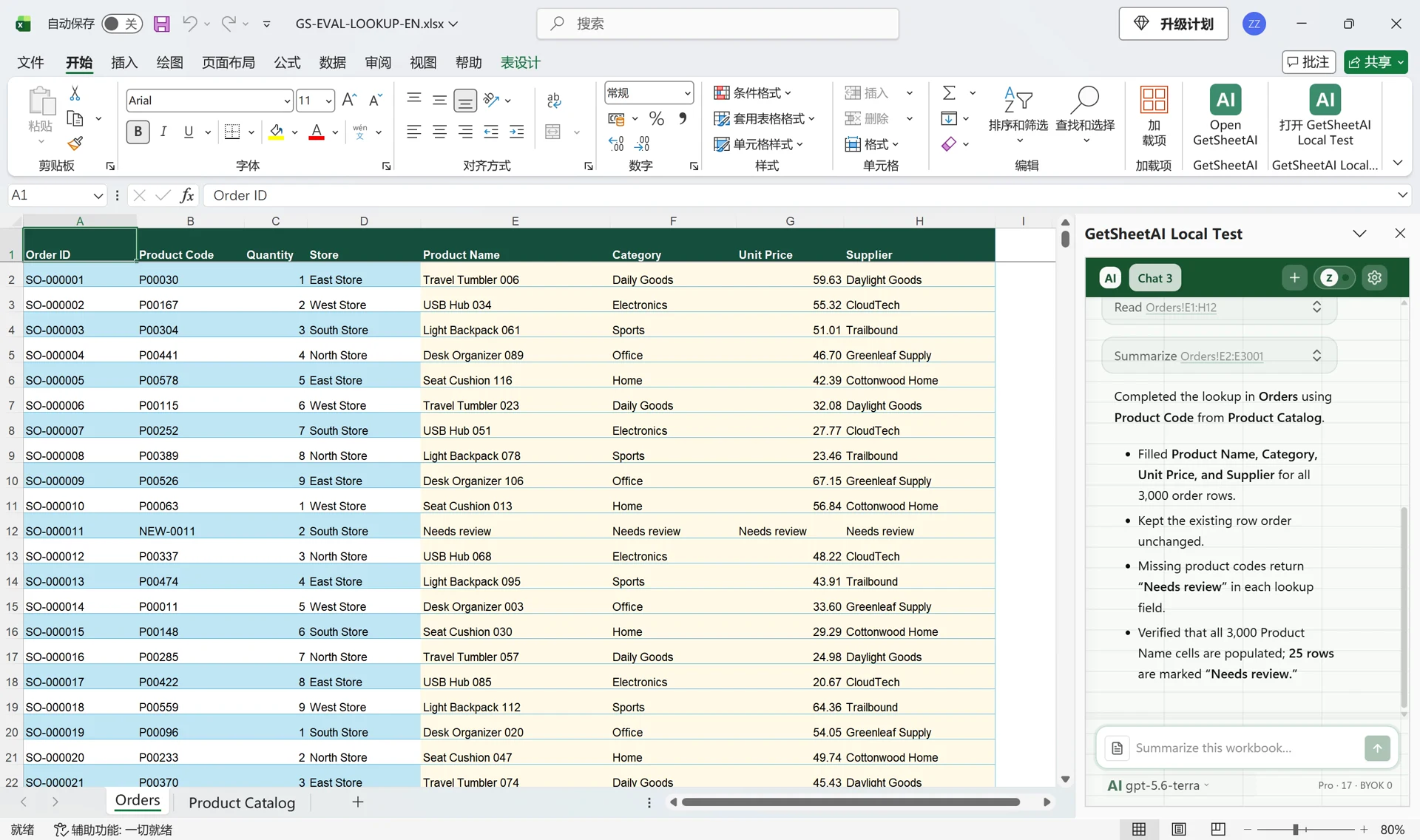
For a working example beyond a single price column, see lookup by employee ID and column header. That demo fills 120 formula cells from 3,000 source records, updates when the ID or header changes, and displays Not found for an unknown ID.
The three tools
IFERROR catches every error type:
=IFERROR(A2/B2, 0)
If the division produces #DIV/0!, #VALUE!, #REF! — anything — you get 0. That breadth is also its danger: a #REF! from a deleted column deserves attention, not a silent 0.
IFNA catches only #N/A:
=IFNA(VLOOKUP(A2, Prices!A:B, 2, FALSE), "not listed")
This is almost always what you want around lookups: "value not found" is an expected condition, while #VALUE! or #REF! from the same formula still signals a genuine bug.
XLOOKUP's built-in if_not_found makes the fallback part of the lookup itself:
=XLOOKUP(A2, Prices!A:A, Prices!B:B, "not listed")
Cleaner than wrapping, and it only handles the not-found case — other errors still surface.
A lookup example you can check
On a sheet named Prices, enter A100 and 12 in A2:B2, then A200 and 0 in A3:B3. On a separate sheet, enter a product key in A2 and this formula in B2:
=XLOOKUP(A2, Prices!$A$2:$A$3, Prices!$B$2:$B$3, "NOT LISTED")
| Key in A2 | Expected result in B2 | Meaning |
|---|---|---|
| A100 | 12 | Found a price |
| A200 | 0 | Found a genuine zero |
| A999 | NOT LISTED | No matching product key |
These are synthetic test rows, not customer results. A missing match is different from a match whose source price is empty: the latter can return zero. Check source completeness and duplicate keys before trusting the output. XLOOKUP returns the first match by default.
Excel 2016 and 2019: XLOOKUP is unavailable. For this same two-column table, use the following exact-match alternative:
=IFNA(VLOOKUP(A2, Prices!$A$2:$B$3, 2, FALSE), "NOT LISTED")
IFNA also catches #N/A propagated from the matched source cell; it does not prove the key was missing. If that distinction matters, inspect the source and keep a separate match-status column. See the blank-cell filling example for preserving existing values.
Why XLOOKUP does not find a value that looks present
Before changing the fallback, inspect the key and reference table:
| Check | What to look for | What to do |
|---|---|---|
| Lookup range | The expected key lies outside the selected rows | Correct the range; keep lookup and return arrays aligned |
| Text versus number | One key is numeric and the other is text | Normalize both sources deliberately; preserve meaningful leading zeros |
| Extra characters | Leading/trailing spaces or nonbreaking spaces | Inspect both keys and clean only characters that are not meaningful |
| Duplicate keys | Several reference rows share the key | Review the conflicts; the default lookup returns the first match |
| Source errors | The matched return cell already contains an error | Fix or explicitly flag that source error |
Use the Excel data-cleaning checklist for imported text and duplicate-record review for conflicting keys. A fallback message makes a report easier to read; it does not repair the underlying data.
Rule of thumb: handle expected, expose unexpected
Ask one question per formula: which error is normal here?
- A lookup that can legitimately miss → handle
#N/A(IFNA or XLOOKUP's fallback). - A ratio whose denominator can legitimately be zero → test the denominator explicitly:
=IF(B2=0, "", A2/B2)
Testing the condition is better than catching the error: IF(B2=0,…) documents why the fallback exists, while IFERROR around the same division would also swallow a #VALUE! caused by text in column B.
- Everything else → let it error. A visible
#REF!costs you a minute; an invisible one costs you a wrong report.
The classic mistakes
Blanket IFERROR over a whole column. Imagine a report with 40 zeros: three are real zeros and 37 conceal references to a deleted sheet. The report looks complete but is not.
IFERROR(..., "") feeding math. SUM ignores text, including formula-generated empty strings in referenced cells, so a total can look valid while omitting failed calculations. Direct arithmetic with that text may instead return #VALUE!. Keep a separate error count rather than treating either result as proof that the source is complete.
Catching errors that indicate dirty data. If VALUE(A2) errors because the column mixes text and numbers, the fix is cleaning the column, not catching the symptom.
Auditing a sheet full of hidden errors
Inheriting a workbook where every formula is wrapped in IFERROR? Two moves:
- Count what's being caught. In a helper column, repeat the inner formula without the wrapper. If those diagnostic results occupy E2:E20, count them with
=SUMPRODUCT(--ISERROR(E2:E20))in a cell outside that range. - Ask an assistant to audit it. AI for Excel can scan a sheet's formulas, list which cells are currently suppressing errors and what type each error is, and distinguish "lookup miss, handled correctly" from "broken reference, silently hidden" — then fix the ones you approve, with an automatic backup before any change.
This kind of formula audit is tedious by hand and fast for a tool that reads the workbook programmatically. If you'd rather describe the goal in a sentence than build helper columns, try the add-in free — and for the plain-English route to writing these formulas in the first place, see AI formula generation.
More reliable formula patterns
Return a status instead of silently returning zero:
=IF(B2=0, "CHECK DENOMINATOR", A2/B2)
Keep a missing match visible as an error, while checking source blanks separately:
=XLOOKUP(A2, Prices!A:A, Prices!B:B, NA())
Validate the key before looking it up:
=IF(TRIM(A2)="", "MISSING KEY", XLOOKUP(TRIM(A2), Prices!A:A, Prices!B:B, "NOT LISTED"))
These visible states are easier to count, filter, and investigate than empty strings. If a clean presentation is required, keep the diagnostic formula in a helper column and present a separate user-facing result.
Official references
- Microsoft: IFNA function
- Microsoft: IFERROR function
- Microsoft: XLOOKUP function and version availability
FAQ
What is the difference between IFERROR and IFNA?
IFERROR catches every error type; IFNA catches only #N/A (the "not found" error). Around lookups, prefer IFNA or XLOOKUP's if_not_found argument so that structural errors like #REF! stay visible.
Should I use IFERROR everywhere?
No. Handle only the errors you expect (usually lookup misses and zero denominators) and let unexpected errors show. A visible error is diagnostic information; a hidden one is a future incorrect report.
How do I find all cells with errors in Excel?
Press F5 → Special → Formulas → check only Errors. Excel selects every error cell in the sheet. An AI assistant can go further and categorize them by error type and cause.