AI for Excel: Clean Data, Write Formulas and Build Reports
See how GetSheetAI works inside Excel: describe a task, clean existing data, write working formulas and create linked reports. Includes real examples and setup steps.
AI for Excel lets you describe spreadsheet work in ordinary language and have an assistant help carry it out inside your workbook. With GetSheetAI, that can mean cleaning a table, writing formulas into cells, matching columns or creating a report on a new sheet.
The useful distinction is where the work ends up. A formula suggestion in a chat still needs to be copied into the right place. An Excel AI add-in can work with the open sheet and put results back into Excel. This guide describes GetSheetAI, a separate add-in rather than a Microsoft product.
A real example: 36 months into a three-year report
The source workbook contains a monthly profit-and-loss table for 2023–2025. Instead of selecting each year's columns and rebuilding the same calculations, we asked GetSheetAI to create an annual report on a new sheet.
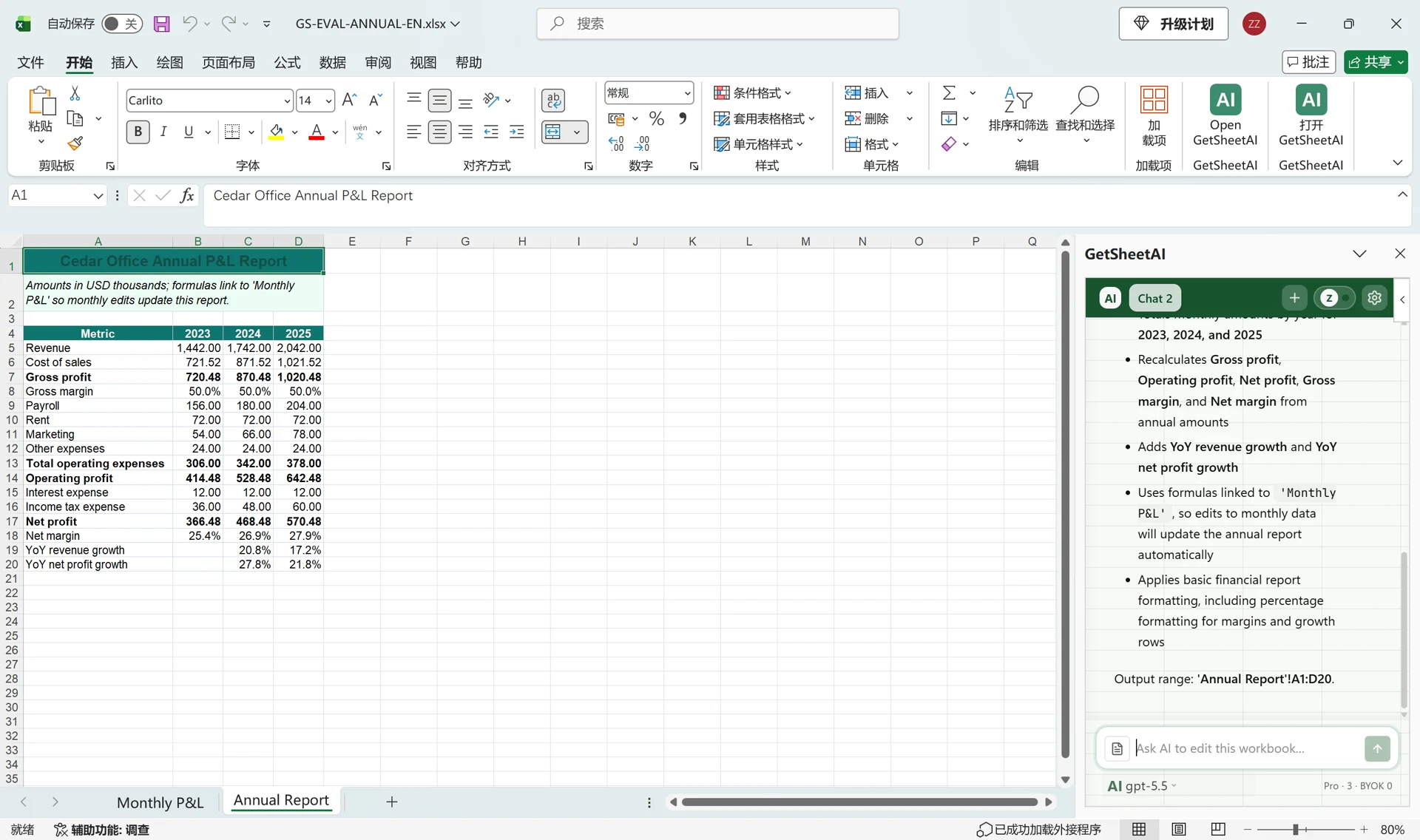
Actual Excel screenshot from our simulated-data demonstration, not customer records. Open the full-size image.
The report totals revenue and expenses, recalculates margins and adds year-on-year growth. In the recorded update test, changing January 2025 revenue from 150 to 200 changed annual revenue from 2,042 to 2,092. Amounts are in USD thousands. The source value was then restored.
Read the full case, including the original instruction and formula.
The core loop: read → act → write back → verify
An embedded assistant lives in a sidebar inside Excel. When you type a task —
"Clean the sales table, fill the missing cost, add a profit formula, and summarize anomalies"
— the loop looks like this:
- Read. It reads the relevant range from the workbook: headers, types, values. Not a pasted screenshot — the live cells.
- Act. It plans the concrete steps: fix the missing value, generate
=IFERROR([@Revenue]-[@Cost],0), apply number formats. - Write back. Changes land in the cells: filled values, real formulas, formatting, new summary rows.
- Verify. It reads back what it wrote, checks for formula errors, and reports the result — including anything it couldn't fix.
That last step is the difference between an assistant and an autocomplete. (You can watch this exact loop in the demo on our home page.)
What it does well today
- Data cleaning. Trimming, type fixes, date normalization, missing values, duplicates — described once, applied everywhere.
- Formula work. Plain-English formula generation against your real table structure, filling formulas down columns, explaining inherited formulas, auditing sheets for hidden errors.
- Analysis and reporting. Group summaries, rankings, trend and outlier detection, chart generation — on large sheets, where the reading and aggregation happen programmatically rather than by squinting.
- Row-by-row classification. Applying your rules to every row with a written rationale per decision.
- External lookups. Fetching exchange rates, weather, or public web data with sources, and writing them into cells.
What you should NOT trust it to do
Honesty is part of the product here:
- Arithmetic in the model. For a reusable report, ask for Excel formulas rather than a list of calculated values. In the annual-report example above, formulas remain in the workbook and Excel recalculates them when the referenced values change.
- Mind-reading ambiguous requests. "Fix this sheet" will produce a reasonable interpretation. Specific instructions produce specific results.
- Judgment without rules. "Which customers should we drop?" is a business decision. "Flag customers inactive 180+ days with declining spend" is an automatable rule. Know which one you're asking.
The guardrails that make it trustworthy
If you evaluate any AI spreadsheet tool, these are the questions that matter:
Can you recover a change? GetSheetAI provides checkpoints and recovery controls. For a report like the example above, also request a new result sheet so the source stays in place.
Are writes verified? After writing, the add-in reads the result back and reports formula errors instead of leaving them buried.
Is there a change log? You should be able to see what was modified, not infer it.
Does it stop instead of thrashing? Cost guards and failure handling mean a stuck task halts with an explanation — not an infinite loop burning quota.
Getting started
The practical on-ramp is a task you already do manually and mildly resent: a weekly report cleanup, a recurring lookup, a summary table. Describe it, review the result, roll back if it's not right.
- Open the GetSheetAI installation page and choose Microsoft 365 — Excel & Word. Follow the Microsoft Marketplace installation flow; managed accounts may need administrator approval.
- Open your workbook and the GetSheetAI add-in pane in Excel.
- Describe the task and where the result should go. For recurring reports, ask for formulas linked to the source.
- Use the resulting worksheet or report directly in Excel. Edits inside the referenced range recalculate through Excel; new periods outside that range may require extending the formulas.
Start with a concrete task such as matching four columns across 3,000 orders or splitting a master table into separate sheets. For document work, see the Word meeting-minutes case.
FAQ
Is AI for Excel the same as Copilot?
No. GetSheetAI is a separate add-in, not Microsoft Copilot. Both belong to the broader category of AI assistance for spreadsheet work. Compare actual workflows, supported environments and current plans in our workflow comparison.
Does AI read my whole spreadsheet?
GetSheetAI uses workbook context and range reads to perform the task. The example above needed no separate file upload because the workbook was already open in Excel. This does not mean that AI processing is entirely offline—see our security notes for data-handling details.
Can I use AI in Excel for free?
Check the current free allowance and plan options on the pricing page. Choose a small, representative task to see how the workflow fits your work.