GetSheetAI vs GPT for Work vs Claude for Excel: Feature Comparison
Compare Excel AI capabilities, from formulas and pivot tables to model choice and recovery. See where GetSheetAI fits, with documented features and practical workbook examples.
The slow part of Excel work is often a sequence: understand the data, match records, handle exceptions, fill formulas, then prepare a report someone else can use.
An AI add-in should be evaluated against that work, not just its ability to answer a spreadsheet question. Which tasks can it perform inside your workbook, and what can you check afterward?
This guide compares GetSheetAI, GPT for Work and Claude for Excel by supported capabilities and interaction style.
Disclosure and scope: written by the GetSheetAI team; information checked on October 1, 2026. Our column draws on implemented features and developer demonstrations; competitor columns use official documentation. This is not an independent review or a speed, accuracy or reliability benchmark. We have not run a three-product controlled test.
Excel AI capabilities at a glance
All three products support conversational work inside Excel. Availability still depends on the Excel environment, selected model, account configuration and operation involved.
| Capability | GetSheetAI | GPT for Work | Claude for Excel |
|---|---|---|---|
| Execute tasks through an Excel sidebar conversation | Supported | Agent chat | Supported |
| Read spreadsheet data and write changes back | Supported | Supported | Supported |
| Generate and write formulas | Generation and bulk fill | Generation and autofill | Generation, including cross-sheet references |
| Investigate formula problems | Formula audits and specific repair patterns | Explanation and repair | Reference tracing and repair |
| Cell formatting and conditional formatting | Supported | Supported | Supported |
| Create Excel charts | Native charts | Supported | Supported |
| Pivot table operations | Create, configure and refresh | Supported | Create and edit |
| Main task interfaces | Conversation-driven workbook tasks | Agent, bulk tools and GPT functions | Conversation-driven workbook analysis and edits |
| Model choice | Multiple providers and bring-your-own configurations, subject to access | Multiple providers and API keys | Claude models; enterprise platform configuration may differ |
| Protection and recovery | Recovery for some operations; read-back checks for supported writes | Full backup/recovery scope not verified for this article | Overwrite warnings; tutorial describes Excel undo for most actions |
Competitor entries are based on the GPT for Work feature guide, Agent documentation, Claude for Excel documentation and Claude workbook and chart tutorial. These are different protection mechanisms, not equivalent recovery guarantees. “Not verified” does not mean unsupported.
Support is not a promise that every request succeeds on the first attempt. GetSheetAI's dedicated formula-repair tool covers particular patterns, not arbitrary formula errors. Native charts and pivot tables are supported separately; native PivotChart binding is not currently supported.
Why consider GetSheetAI for everyday Excel work?
GetSheetAI focuses on turning a business request into workbook operations: read the relevant ranges, perform the task, and leave results you can inspect and refine in Excel. These are reasons to consider it, not claims that competing products lack the same abilities.
Match data across sheets without assembling each lookup yourself
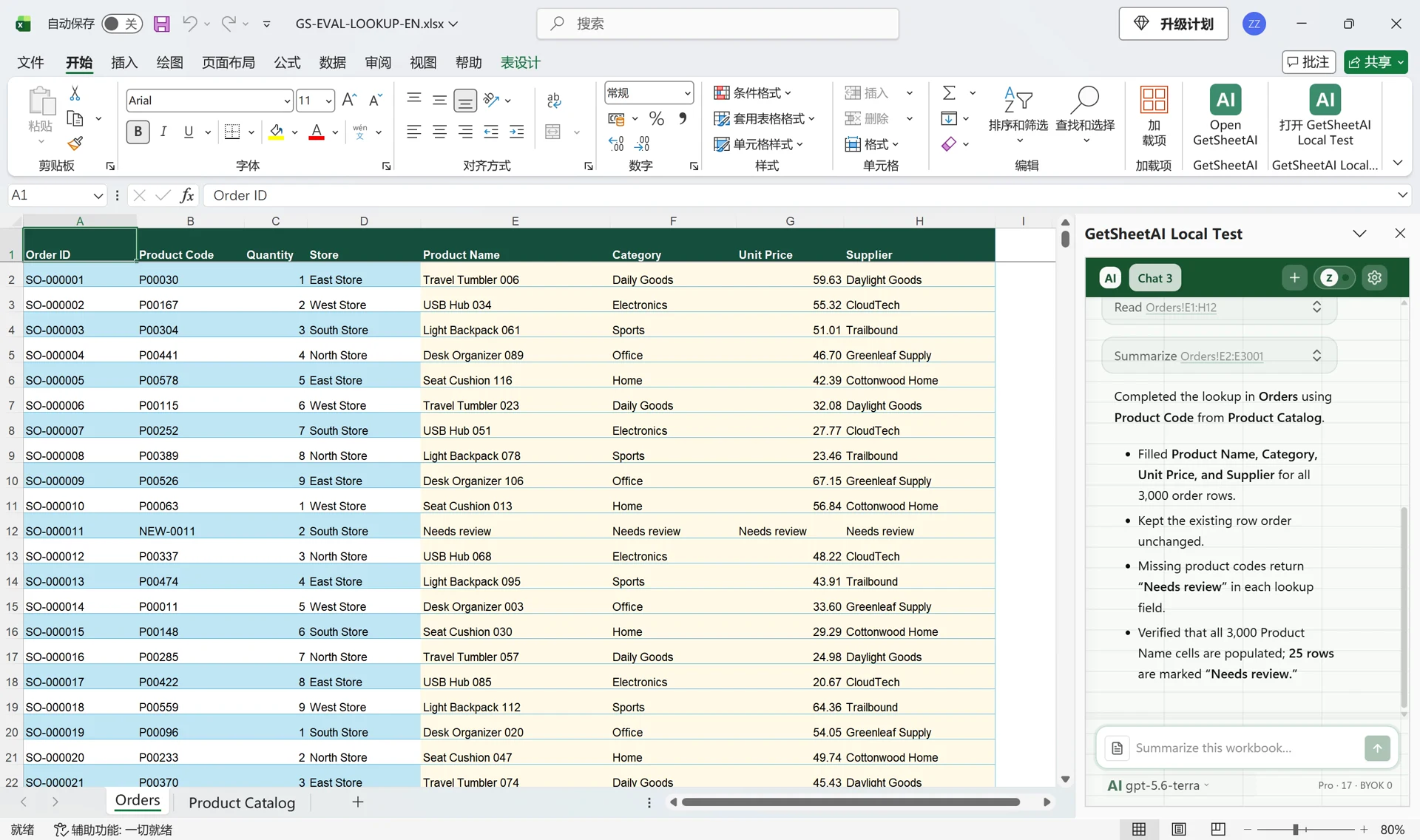
An order export may contain product codes while a catalog holds names, categories, prices and suppliers. The task is to connect the records while preserving order and exposing missing matches.
In our 3,000-order matching demonstration, GetSheetAI filled four destination columns: 12,000 cells in total. It matched 2,975 orders and marked 25 missing catalog codes for review. The matching key was the product code, not the row position.
If your reference table contains duplicate keys, specify which record should win before proceeding.
Combine calculations, exceptions and presentation
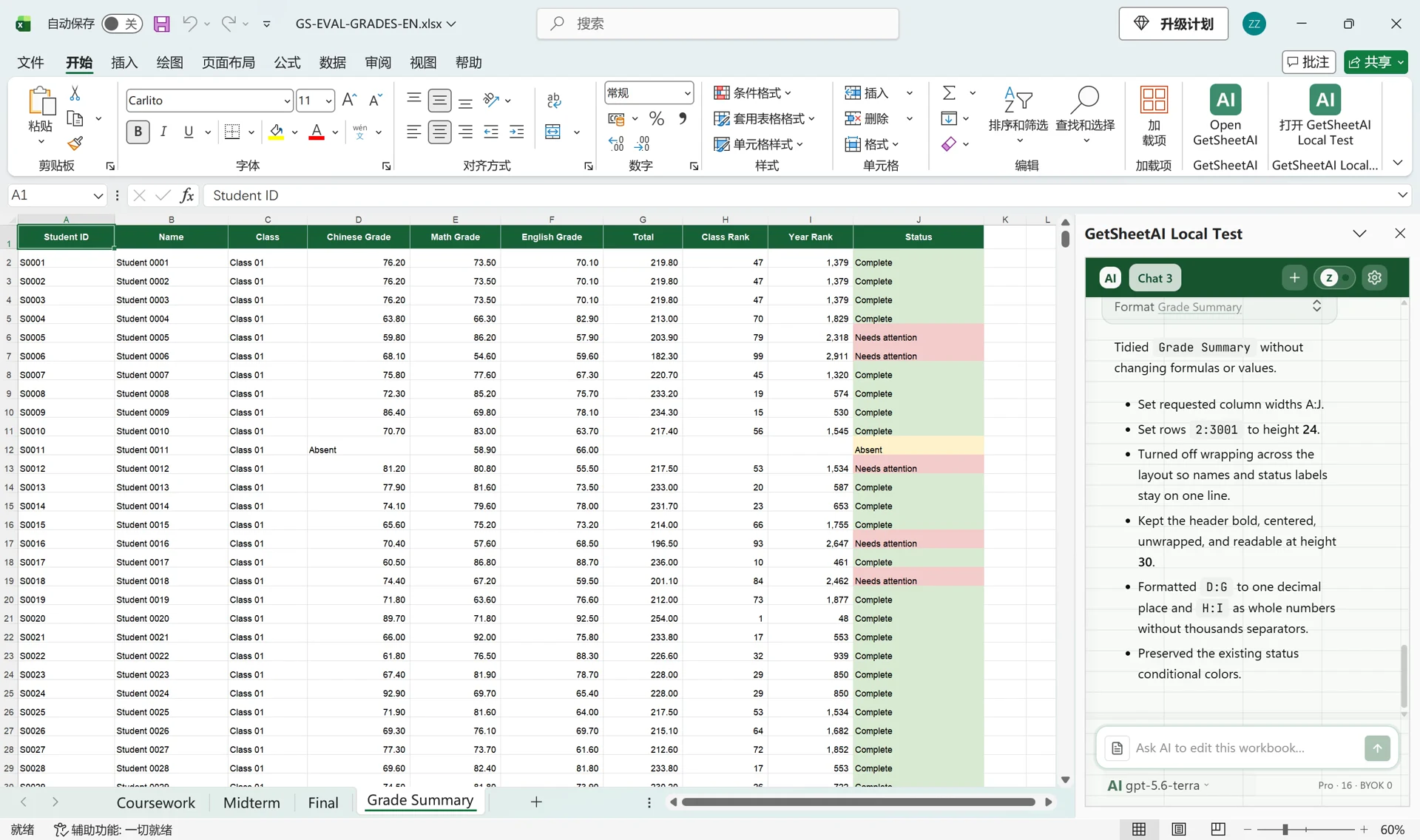
Our student-grade demonstration used 3,000 simulated students across three sheets. The task combined ID matching, weighted grades, class and year-group rankings, and missing-exam handling. A follow-up request refined the layout.
Both examples are developer recordings using simulated data, not customer success studies or competitor tests. Recordings may be sped up; their playback duration is not execution-time evidence.
Keep checking and recovery in the workflow
GetSheetAI performs read-back verification for supported writes and can retain recovery records for some operations. That helps distinguish a requested change from a confirmed write.
A write check does not establish that a business conclusion is correct. Recovery depends on the operation and a successfully captured snapshot, with size and retention limits. Do not assume every chart, pivot, sort or whole-workbook change can be reversed. Keep a separate copy of important workbooks and review key formulas, totals and exceptions.
Which workflow should guide your choice?
- Consider GetSheetAI for conversation-driven matching, cleaning, formula filling and report preparation, with particular attention to its inspectable output and supported recovery paths.
- Evaluate GPT for Work if row-by-row translation, classification, extraction or content generation is central to your job. It provides dedicated bulk tools and in-cell GPT functions alongside its Agent. It also handles ordinary workbook operations. See its feature guide.
- Evaluate Claude for Excel if you frequently inherit complex models, investigate where numbers come from or adjust assumptions. Its documentation describes cell-level citations, cross-tab analysis and formula debugging. See the official guide.
These are suggested starting points based on documented capabilities, not exclusive categories or measured rankings. More than one product may fit the same task.
Try one representative task on a workbook copy
Use your own example to judge fit. For instance:
Match Orders with Customer Details by customer ID. Preserve the original order of the orders. Flag missing and duplicate matches instead of guessing. Do not overwrite the source data; put the result in a new sheet and explain what changed.
Then check whether the output was written into Excel, whether formulas and matches are correct, how exceptions were handled, and how easily you can refine the result.
If matching, cleaning, filling and reporting are taking up your day, try GetSheetAI on one concrete task. The best starting point is a piece of spreadsheet work you already understand well enough to verify.