Extract and Sum Amounts from Text in Excel: 2,400 Rows
Extract multiple dollar amounts from Excel text, ignore numbers like 500ml, and calculate totals that update. See formulas, a 2,400-row AI demo and real screenshots.
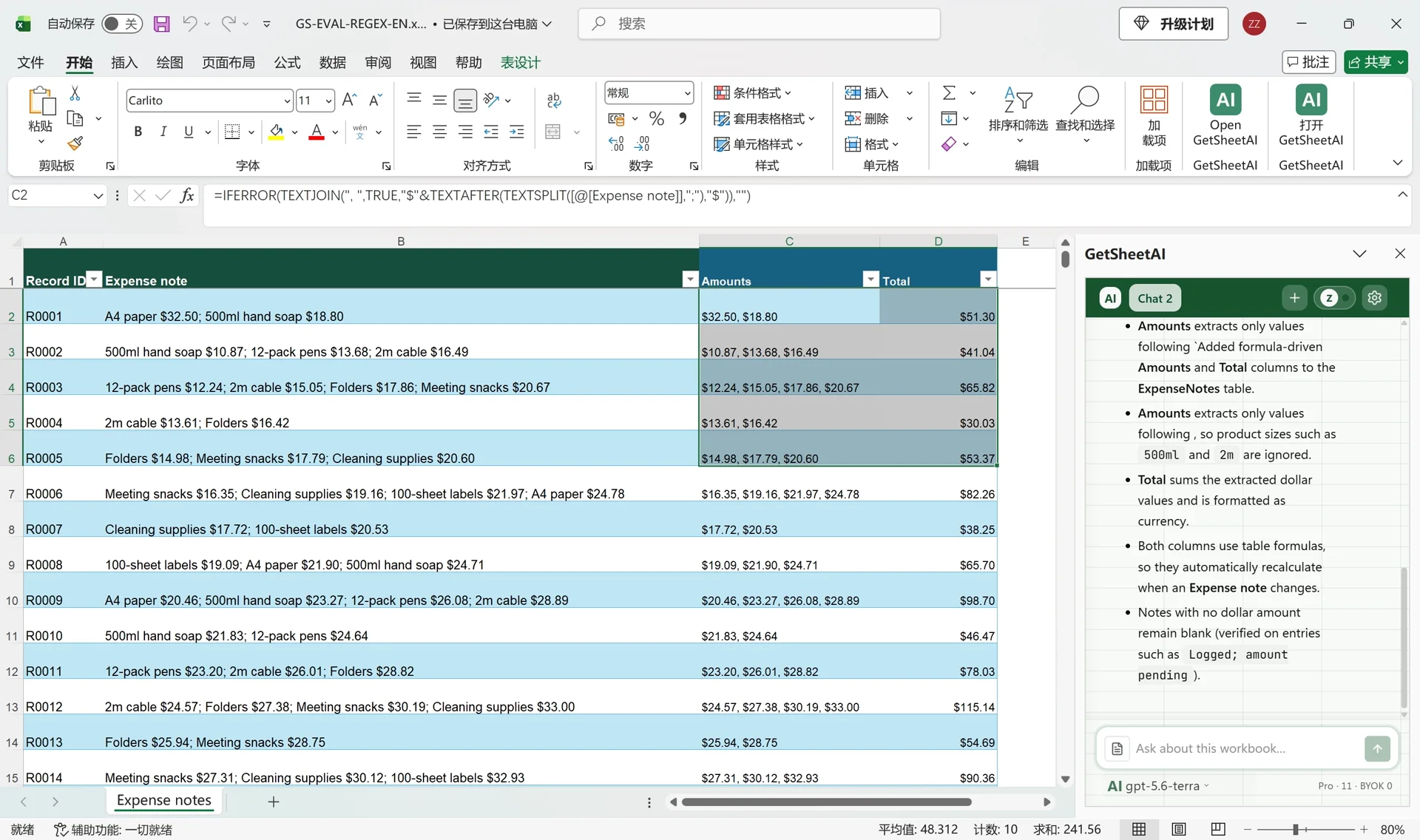
Real screenshots from a local developer demo using simulated data, not customer records. The original app interface is preserved. Short videos include sped-up processing.
An expense note such as A4 paper $32.50; 500ml hand soap $18.80 contains four numbers, but only two are prices. The correct total is $51.30, not a sum of every number in the cell.
To extract and sum amounts from text in Excel, define what identifies a price first. In this example, each item ends with a dollar amount and items are separated by semicolons. Excel can split the items, take the text after $, convert it to numbers and add them. GetSheetAI can build those formulas directly in your workbook from a plain-English request.
The result: 2,400 notes become formula-linked totals
This developer demo uses 2,400 simulated expense records, not customer data. GetSheetAI added Amounts and Total columns to the existing Excel table, keeping the record IDs and original notes. The screenshots show the English workbook with Chinese Excel menus.
| Recorded check | Result |
|---|---|
| Coverage | All 2,400 row totals matched the demo's expected results |
| First note | $32.50 and $18.80 produced $51.30 |
| Product sizes | A4, 500ml and other non-price numbers were excluded |
| Edit the first price | Changing $32.50 to $42.50 changed the total to $61.30 |
| No dollar amount | The result stayed blank rather than inventing a zero |
The useful part is not just extracting numbers once. The formulas remain in Excel, so a corrected note updates its total without another extraction task.
Prepare a clear price pattern
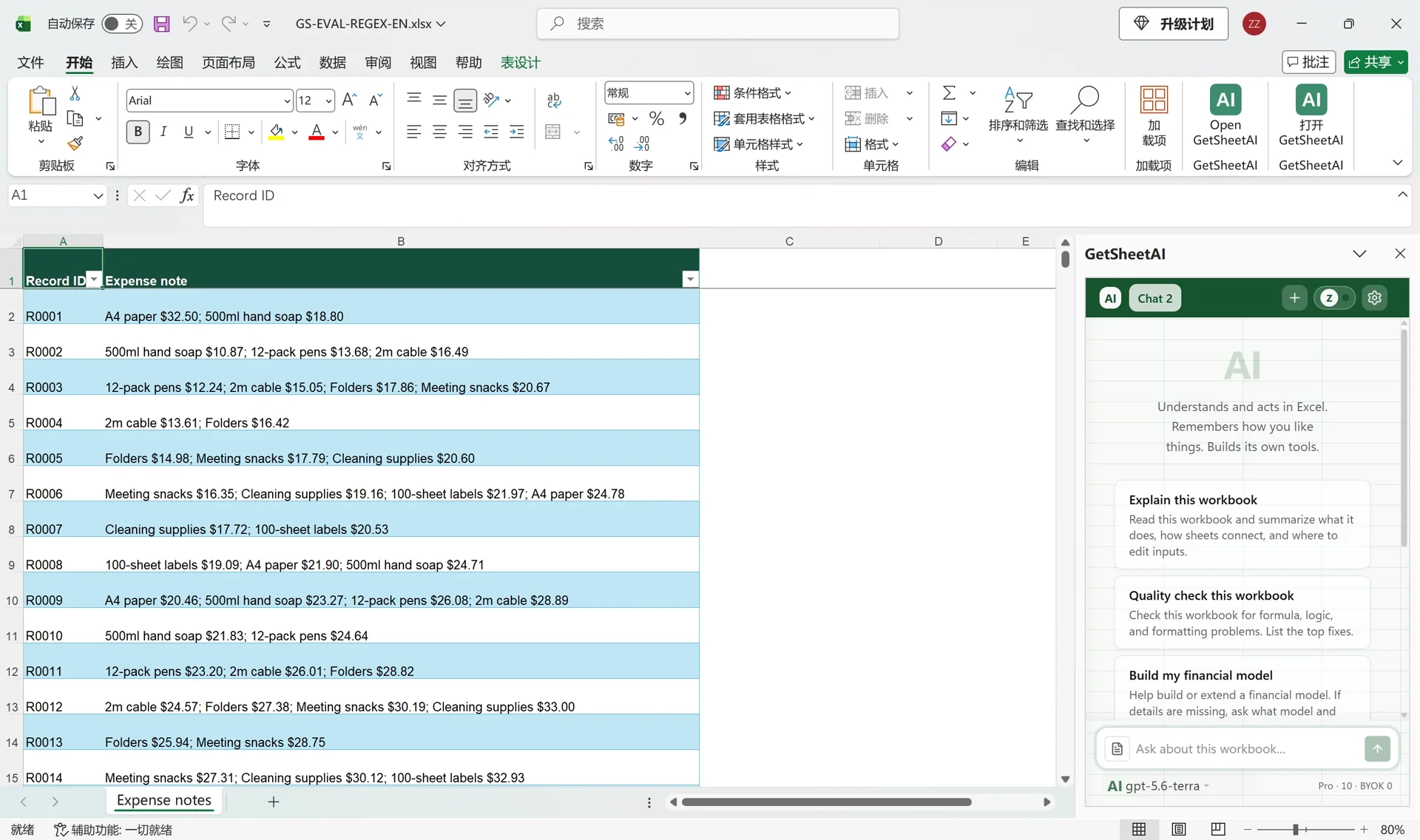
Keep a record ID beside each note. In this demo, a note contains semicolon-separated items, with one $ price at the end of each item. The amount uses a decimal point. Here is a small example you can recreate:
| Expense note | Amounts | Total |
|---|---|---|
| A4 paper $32.50; 500ml hand soap $18.80 | $32.50, $18.80 | $51.30 |
| 12-pack pens $0.00; 2m cable $16.49 | $0.00, $16.49 | $16.49 |
| Logged; amount pending | blank | blank |
These are different from arbitrary sentences containing prices anywhere. If your notes mix currencies, put those currencies in separate totals. If amounts use decimal commas, thousands separators, refunds or trailing text, include those examples when defining the extraction rule.
Give GetSheetAI the extraction rule
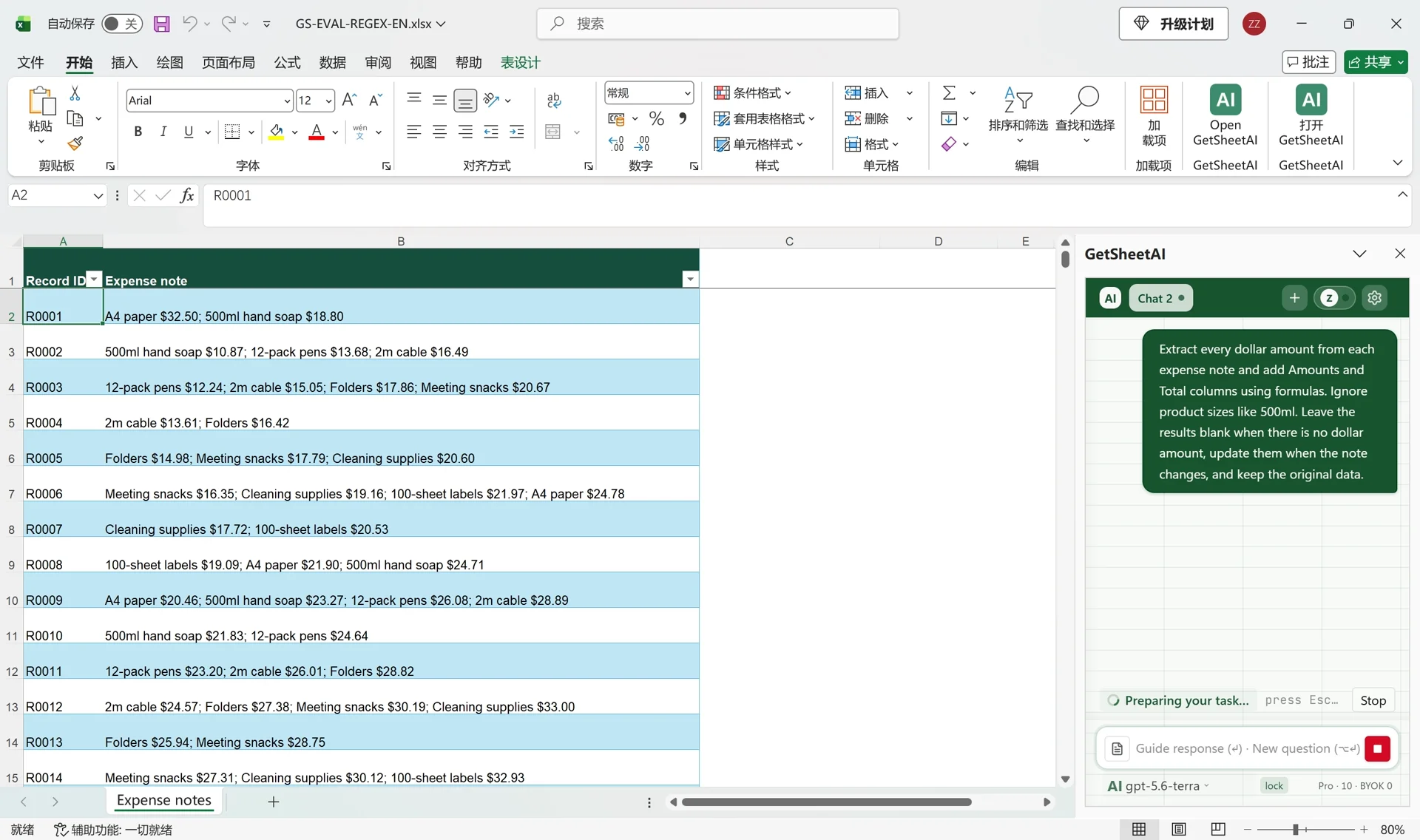
Open the workbook and the GetSheetAI sidebar. This was the request used in the English recording:
Extract every dollar amount from each expense note and add Amounts and Total columns using formulas. Ignore product sizes like 500ml. Leave the results blank when there is no dollar amount, update them when the note changes, and keep the original data.
This is a practical AI for Excel task: describe which numbers count and where the results should go, then let the add-in handle the repeated formula work. The recorded run used TEXTSPLIT and TEXTAFTER, not REGEXEXTRACT. You do not need to write a regular expression to reproduce this particular pattern.
The Excel formulas behind this example
For a note in B2, this is the generated calculation adapted from the table reference to an ordinary cell reference. It assumes the English-style number format shown above.
List the amounts:
=IFERROR(TEXTJOIN(", ",TRUE,"$"&TEXTAFTER(TEXTSPLIT(B2,";"),"$")),"")
Calculate the total:
=IFERROR(SUM(--TEXTAFTER(TEXTSPLIT(B2,";"),"$")),"")
TEXTSPLIT separates the items at each semicolon. TEXTAFTER takes each item's price after $. In the total formula, the double minus converts numeric text into numbers; SUM adds them. Numbers before the dollar sign, such as 500ml, never enter the sum.
Microsoft documents TEXTSPLIT and TEXTAFTER for Microsoft 365 and Excel 2024. Check your Excel version before copying them into an older workbook.
Scope matters: the outer IFERROR also returns blank when an item has an invalid price or when only some items contain $. It is suitable for the demonstrated format, not a universal parser for free-form expenses. For mixed notes, request an additional status column distinguishing “no amount” from “format needs attention,” rather than silently treating both as the same result. See our Excel error-handling guide for that distinction.
Keep the results useful after the first run
Use an Excel table so the note and output columns stay together. Format Total as currency, but keep it numeric so it can be summed, filtered or used in a report. Keep the original note beside the extracted amounts: that makes corrections straightforward.
In the recorded edit, the first note changed from $32.50 to $42.50; the row total rose by exactly $10, from $51.30 to $61.30. This is a demonstrated update, not a claim about every possible expense format or a processing-speed benchmark.
For the next step, use the Excel data-cleaning checklist before building a summary. If you need to fill missing reference values as well, use the fill-blank-cells guide. A missing amount and a genuine $0.00 should stay distinct.
FAQ
How do I add multiple amounts in one Excel cell?
For semicolon-separated items ending in $ amounts, split the items with TEXTSPLIT, extract the text after $ with TEXTAFTER and sum the numeric results. Use the sample formulas above only when your notes follow that pattern.
Will Excel include 500ml or product codes in the total?
Not with this price rule: only the text after $ is converted to a number. A general “extract all numbers” rule would be different and could include sizes or codes.
Does this require REGEXEXTRACT?
No. The recorded workflow used TEXTSPLIT and TEXTAFTER. More varied text may need a different formula or an explicitly defined parsing rule.
Can AI build the formulas without replacing the original notes?
Yes. Ask GetSheetAI to add separate output columns, retain the source notes and use formulas. That is the workflow demonstrated here.