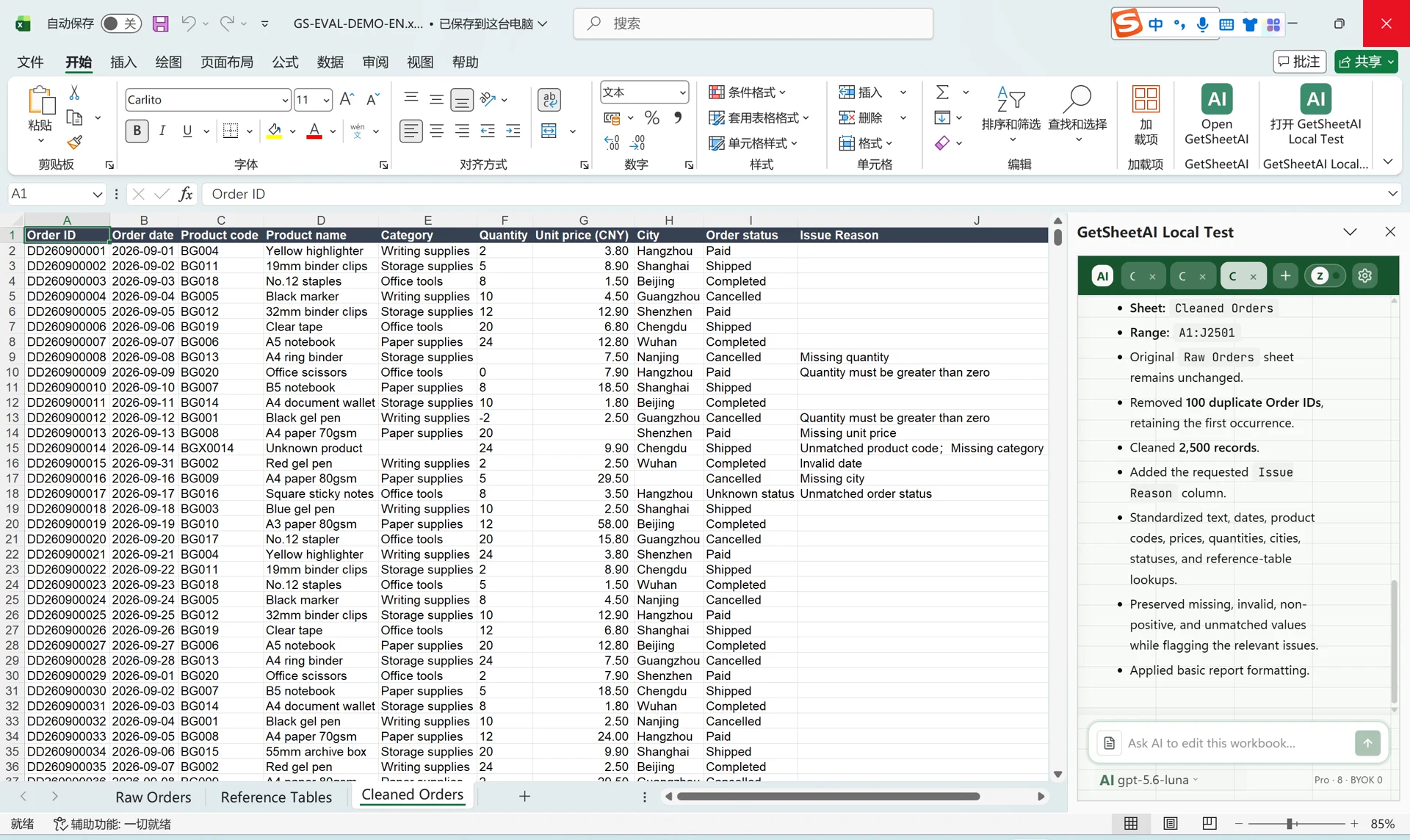
How to Convert Text to Dates in Excel Without Mixing Up Day and Month
Convert text dates in Excel with DATEVALUE, explicit date components, or Power Query locale settings. Learn to flag ambiguous and invalid dates while preserving the original data.
Changing a cell's display format to Date does not necessarily turn a text value into a usable Excel date. Worse, a conversion can succeed while swapping the day and month: 03/04/2026 could mean March 4 or April 3.
The safe approach is to establish the source's date convention, keep the original text, and convert into a new column. Flag ambiguous or impossible dates instead of guessing. Only then apply the display format you want.
Check whether the cell is text or a number
In a helper column, try:
=ISTEXT(A2)
=ISNUMBER(A2)
Use these as two separate formulas. Excel dates are stored as numeric serial values, but ISNUMBER returning TRUE does not prove a value is a valid date for your data: a quantity such as 500 is also a number. Inspect the source and the expected date range. Microsoft's text-to-date guide explains the distinction between converting a value and formatting the result.
The examples below use English function names and commas. Your Excel language and regional settings may require localized function names or semicolons.
Establish the input convention before converting
Here are fictional input examples and the decisions they require:
| Original text | Confirmed source convention | Correct treatment |
|---|---|---|
| 2026-10-11 | Year-month-day | 11 October 2026 |
| 03/04/2026 | Unknown | Review rather than guess |
| 03/04/2026 | Day/month/year | 3 April 2026 |
| 31/04/2026 | Day/month/year | Invalid because April has 30 days |
| 2024-02-29 | Year-month-day | Valid leap-day date |
| 2025-02-29 | Year-month-day | Invalid leap-day date |
A value with a day above 12 can help identify the convention of a consistent source. It does not prove that every row in a mixed export uses the same convention. Ask the source owner or check the export specification. If several systems were combined, separate their records before converting.
Use DATEVALUE for recognized and consistent date text
For text dates that match your system's recognized date convention, use a separate result column:
=DATEVALUE(A2)
Apply a date format to the numeric result. Verify a known day and month before filling the formula down.
DATEVALUE depends on system date settings, so an ambiguous value may produce different results on another computer. It also ignores time information in recognized date-time text. Do not use it to preserve timestamps. See Microsoft's DATEVALUE reference.
Do not replace conversion errors with today's date or zero. That creates plausible-looking data unrelated to the source. Put a review status beside the original text instead.
Convert a fixed year month day format explicitly
If the source is confirmed to contain valid, ten-character YYYY-MM-DD dates, build the date from its components:
=DATE(VALUE(LEFT(A2,4)),VALUE(MID(A2,6,2)),VALUE(RIGHT(A2,2)))
For 2026-10-11, this assigns 2026 to the year, 10 to the month, and 11 to the day. Format the result as an unambiguous year-month-day date.
This formula converts components; it is not a date validator. DATE normalizes out-of-range components: passing February 29, 2025 produces March 1, 2025 instead of rejecting the input. That behavior is documented in Microsoft's DATE reference.
For untrusted input, check the length and separator positions, require numeric components and a valid year, then compare the converted year, month, and day with the original components. A mismatch belongs in the review list. Restrict this recipe to modern dates in your business's expected range; historical dates and workbook date-system differences need separate handling.
Use Power Query for repeated imports
For a recurring export, a repeatable import with an explicit locale is easier to maintain than manually fixing every batch. In Excel versions with Power Query:
- Import the source through Data → From Text/CSV, then choose Transform Data.
- Inspect the applied steps. If an automatic Changed Type step already interpreted the date column, return to the raw-text stage and remove or replace that conversion. Changing a misread date back to text does not recover the original string.
- Keep a copy of the original text column. On the column to convert, choose Change Type → Using Locale.
- Select Date and the locale matching the source, such as English (United Kingdom) for confirmed day/month/year data or English (United States) for month/day/year.
- Review errors and spot-check known dates before loading. Keep invalid rows available for correction rather than removing them to make the error count disappear.
The locale controls how text is interpreted, not merely how a date looks. Microsoft explains this in Power Query data types and locale. Choosing a locale cannot resolve an undocumented mixture of conventions within one column. For the rest of the import setup, see our safe CSV import guide.
Ask GetSheetAI to convert and flag exceptions
Use the GetSheetAI Excel sidebar to describe the source convention and the output you need. A useful prompt is:
Inspect the populated Order Date column. The source specification says day/month/year with a four-digit year. Preserve the original column. Create Parsed Date and Review Reason columns, converting only unambiguous valid calendar dates that match this convention. Leave Parsed Date blank for invalid, missing, or conflicting inputs and explain each issue. Do not guess the meaning of rows using a different convention or discard them. Keep all other columns unchanged. Summarize converted, missing, and review-needed rows and show examples from each category.
If the source convention is unknown, ask for an inspection and examples first, not an automatic conversion. Supplying the rule is especially important when every day and month in a sample is 12 or below.
Verify dates before sorting or reporting
Check a known date where day and month differ, a leap day, a missing value, and an invalid date. Confirm that each input row appears in exactly one category: converted, missing, or needing review. Every converted row should contain a numeric date in the expected range, while its raw text remains unchanged.
Then sort a copy by the parsed date and check that the ordering crosses months and years correctly. If results feed a monthly report, inspect a few records near month boundaries: a reversed day and month can move revenue into the wrong reporting period without generating an Excel error.
For a broader cleanup, continue with the Excel data cleaning checklist. Date conversion is complete when the values have the intended meaning, not just when every cell has the same appearance.