Create Meeting Minutes in Word with AI: Notes to Actions
Turn rough meeting notes into editable Word minutes with GetSheetAI: decisions, an action-items table, owners, deadlines, and clearly marked open questions.
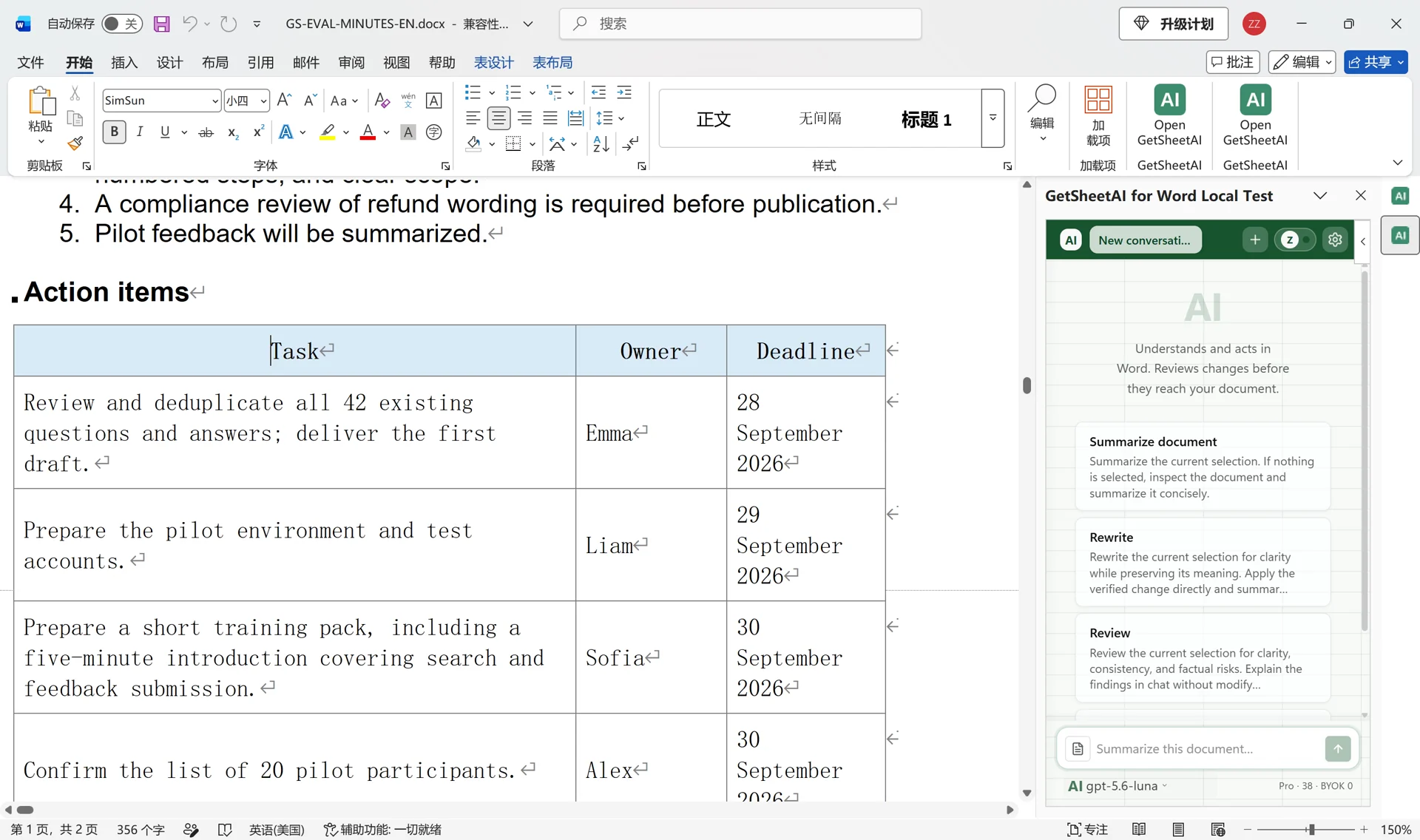
Real screenshots from a local developer demo using simulated data, not customer records. The original app interface is preserved. Short videos include sped-up processing.
▶ Watch the short demo on YouTubeThe meeting is over. Your notes are not. Decisions sit between suggestions, a deadline is buried halfway down the page, and someone still has to turn it all into a document the team can use.
To create meeting minutes in Word with AI, give GetSheetAI the notes already in the document and ask for Decisions, Action items, and Open questions, with a native Word table for tasks, owners, and deadlines. The result stays editable in Word instead of becoming another chat response to copy and format.
Here is that workflow using a simulated customer-support knowledge-base meeting. The screenshots come from the actual local Word demonstration, not a mockup or a customer's meeting.
What the rough meeting notes contained
Our source was a Word document containing notes in speaking order. The meeting covered 42 existing FAQ entries, preparation for a pilot, training, and follow-up work.
There were details that needed organizing rather than simply shortening:
- A pilot with 30 people was suggested, but the final decision was 20.
- The agreed pilot dates were 8–12 October, with a follow-up on 13 October.
- A search redesign and an extra 3,000 budget proposal were discussed but not approved.
- Some work had named owners and dates; other responsibilities were still unspecified.
Useful minutes separate those categories. A suggested feature should not become an approved task just because it appeared in the discussion.
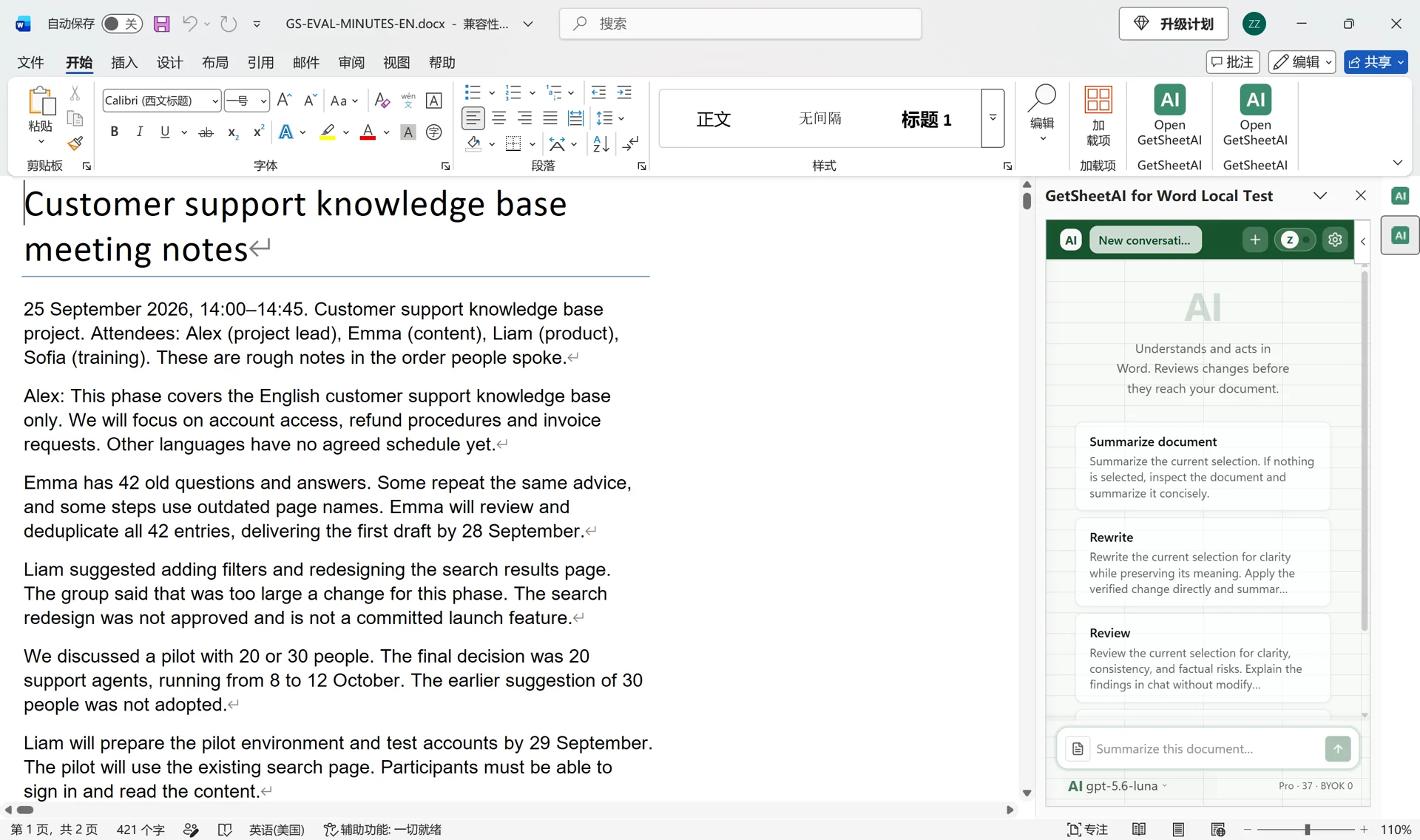
The prompt: create the minutes directly in Word
With the notes open in Word, we sent GetSheetAI this instruction:
Turn these meeting notes into formal minutes with Decisions, Action items and Open questions. Use a native Word table for tasks, owners and deadlines. Mark unspecified details as “To be confirmed”. Distinguish decisions from proposals; do not invent facts. Organize and format the current document directly.
This tells the assistant both what to extract and where to put it. It also avoids extra back-and-forth over the format: the section names and action-table columns are already specified.
The workflow starts with written notes. This case does not demonstrate joining a call or transcribing meeting audio.
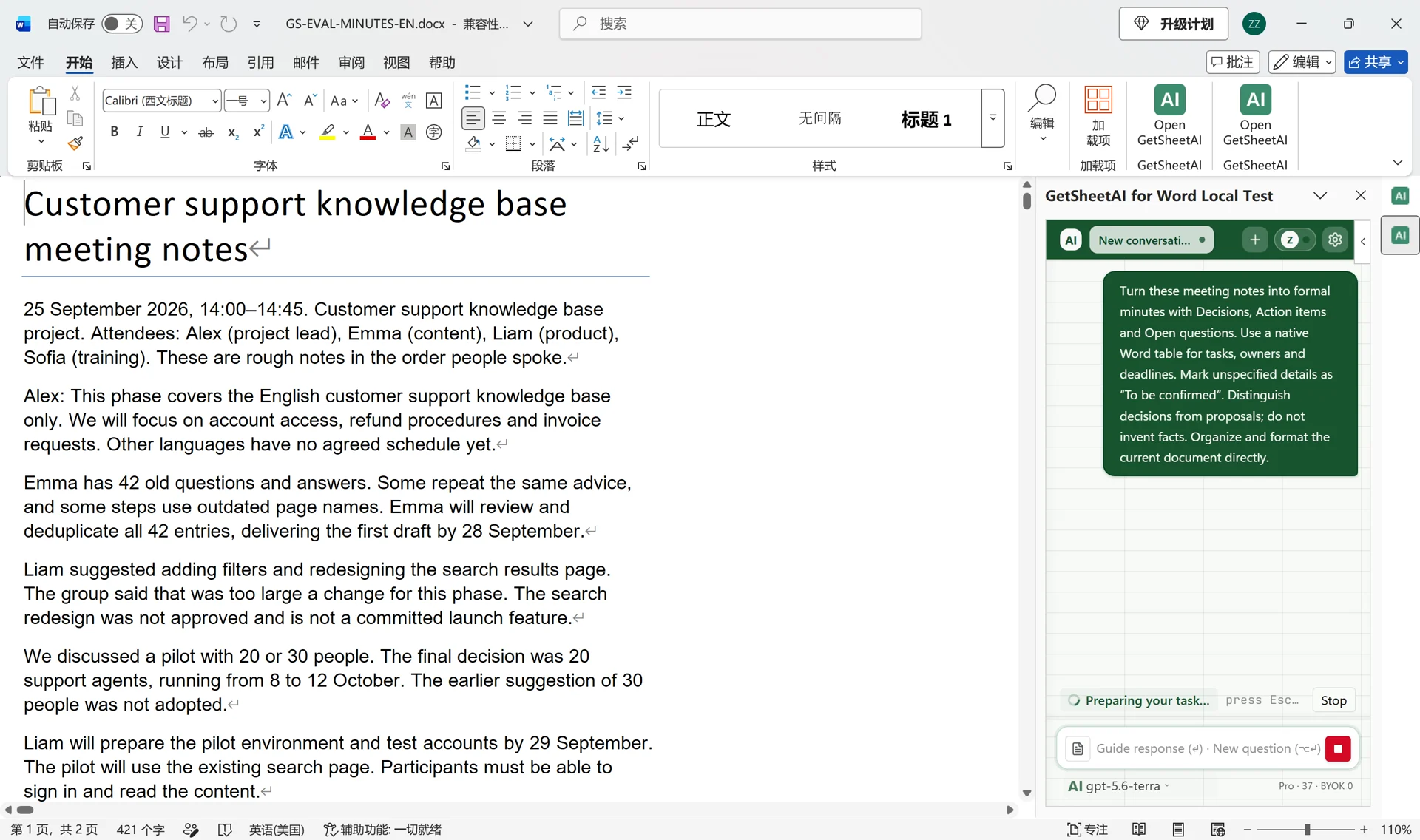
The result: an editable action-items table
GetSheetAI organized the document into decisions, action items, and open questions. The action items became one native Word table with task, owner, and deadline columns, rather than a screenshot of a table.
Four assigned tasks in the source became clear rows:
| Task | Owner | Deadline in the demo |
|---|---|---|
| Review and deduplicate all 42 FAQ entries; deliver the first draft | Emma | 28 September 2026 |
| Prepare the pilot environment and test accounts | Liam | 29 September 2026 |
| Prepare the short training pack | Sofia | 30 September 2026 |
| Confirm the list of 20 pilot participants | Alex | 30 September 2026 |
The pilot remains a 20-person pilot. The unapproved redesign and budget stay distinct from decisions, and unspecified owners or deadlines remain marked for confirmation. Those details make the minutes useful for the next working day, not merely easier to read.
A meeting-minutes structure you can reuse
For another meeting, keep the same three-part structure:
- Decisions: what the group actually agreed, including scope and dates.
- Action items: the task, responsible person, and deadline stated in the notes.
- Open questions: unresolved proposals, missing responsibilities, and dates still to be agreed.
If your team uses different headings, put them in the request. For example, ask for “Decisions, Delivery plan, and Pending approvals.” The goal is to remove the repetitive extraction and formatting work while keeping the document in your team's familiar layout.
What this workflow saves you doing
You do not need to rewrite the notes into three separate lists, build the task table by hand, then transfer everything back into Word. The document itself becomes the organized output, and its text and table remain editable for the next update.
The short demonstration includes sped-up processing. Its running time is not an execution-time benchmark.
For a different document workflow, see turning 10,000 Excel orders into a Word sales report. Our Word document-agent development log covers the broader document capabilities. If your follow-up involves customer balances, the invoice and payment reconciliation case shows a formula-based Excel output.