How to Compare Two Excel Sheets for Differences
Compare Excel sheets by a unique ID to find changed values, added rows, and missing records. Follow a worked example, handle duplicates, and use a scoped AI prompt.
Two order exports can contain the same number of rows and still describe different orders. Comparing A2 with A2 is not enough if someone sorted one sheet or inserted a record.
For business records, compare by a stable identifier first, then compare the fields belonging to that identifier. Keep three results separate: changed records, records only in the old sheet, and records only in the new sheet. Preserve both sources and put the report on a separate sheet.
Decide what you want to compare
| Question | Appropriate approach |
|---|---|
| Did the amount change for an order? | Match the order ID, then compare the amount |
| Which orders were added or removed? | Check ID presence in both directions |
| Did a formula or cell format change? | Compare workbook versions rather than just returned values |
| Do two small sheets look different? | View them side by side, then investigate the differences |
Microsoft's side-by-side worksheet view helps with visual inspection. It does not align records by their business identifiers. The example below compares values, not formatting or formula text.
Start with a unique key
Use an order ID, employee ID, or another identifier that should occur once in each source. Names alone are often unsuitable. If an order has several lines, an order ID alone is not unique: use a documented combination such as order ID and line number.
Before matching, inspect blank IDs, duplicates, leading zeros, and text-versus-number differences. Keep the original ID alongside any cleaned version. Do not erase meaningful spaces or leading zeros simply to force a match. Our column matching guide covers the related task of bringing fields into an existing table.
The following formulas use English function names and commas. Localized Excel may require translated function names or semicolons. The sample uses simple IDs without wildcard characters and nonblank numeric amounts.
Work through a small comparison
In a copy of the workbook, create two sheets named Old and New. Put these fictional records in columns A and B, with headers in row 1. The row order is intentionally different.
| Old ID | Old amount | New ID | New amount |
|---|---|---|---|
| A101 | 120 | A103 | 75 |
| A102 | 80 | A101 | 120 |
| A103 | 75 | A105 | 60 |
| A104 | 50 | A102 | 95 |
The first two columns belong on Old; the last two belong on New. These are illustrative data, not a customer result or a speed benchmark.
First, on each sheet, use a helper column to count that row's ID in its own source:
=COUNTIF($A$2:$A$5,A2)
Every nonblank ID in this example should return 1. Investigate values above 1 before performing a lookup. COUNTIF is case-insensitive and recognizes wildcard criteria. If case distinguishes your IDs, or IDs contain *, ?, or ~, these simple formulas need a different matching rule; do not use them unchanged.
Next, in Old!D2, count matches in the new source, then fill down:
=COUNTIF(New!$A$2:$A$5,A2)
0 means the ID appears only in Old; 1 means a unique candidate; more than 1 means an ambiguous match. In Old!E2, retrieve the new amount:
=XLOOKUP(A2,New!$A$2:$A$5,New!$B$2:$B$5,"Not found",0)
Only where D is 1 and both amounts are valid numbers should you compare E with B. Do not treat a missing record, an empty amount, and a genuine zero as equivalent. For calculated amounts, decide an appropriate rounding or tolerance rule before classifying differences.
XLOOKUP returns the first matching item; it does not resolve duplicates. It is also unavailable in Excel 2016 and 2019. In those versions, after the same uniqueness checks, use this exact-match alternative in E2:
=IFNA(INDEX(New!$B$2:$B$5,MATCH(A2,New!$A$2:$A$5,0)),"Not found")
See Microsoft's XLOOKUP documentation and INDEX and MATCH guidance for function behavior and compatibility.
Finally, on New, count each ID against Old to find additions:
=COUNTIF(Old!$A$2:$A$5,A2)
Filtering this column to 0 finds A105. Checking only from Old to New would miss it.
Build a report that explains each difference
For the example, a separate report should contain:
| ID | Old amount | New amount | Status |
|---|---|---|---|
| A101 | 120 | 120 | Unchanged |
| A102 | 80 | 95 | Changed |
| A103 | 75 | 75 | Unchanged |
| A104 | 50 | — | Only in Old |
| A105 | — | 60 | Only in New |
There are five distinct IDs: two unchanged, one changed, one only in Old, and one only in New. Both sources contain four rows. A same-row comparison would give a misleading picture.
For several fields, record the field name and old and new values for each change. Preserve source row references as well as IDs. Keep blank or duplicate keys in a separate review list rather than silently deleting them. See how to remove duplicates safely before changing either source.
Ask GetSheetAI for a scoped comparison
In the GetSheetAI Excel sidebar, specify the key, fields, output location, and rules rather than asking only to “compare these sheets.” Replace the field names in this prompt with your actual headers; omit Status if your source has only an amount column:
Compare Old and New by Order ID, using their actual populated ranges. First report blank and duplicate IDs in each source. If IDs are ambiguous, stop and ask me how to match them. Compare Amount and Status only. Keep missing records, blank values, and zero values distinct. Create a new Comparison sheet with the ID, changed field, old value, new value, result category, and source row references. Include records found on only one side. Do not modify either source sheet. Summarize counts and show any unresolved rows.
Review the proposed matching rule before accepting changes. AI assistance can help organize the comparison, but it cannot decide whether two different identifiers represent the same order without a rule from you.
Check the report before using it
- Verify one unchanged record, one changed record, and one record unique to each source.
- Reconcile the distinct ID count across all result categories; count unresolved IDs separately.
- Confirm that sorting either source does not change the classification.
- Check that the full populated ranges were included, not just the visible or filtered rows.
- Keep the original exports so another person can reproduce the comparison.
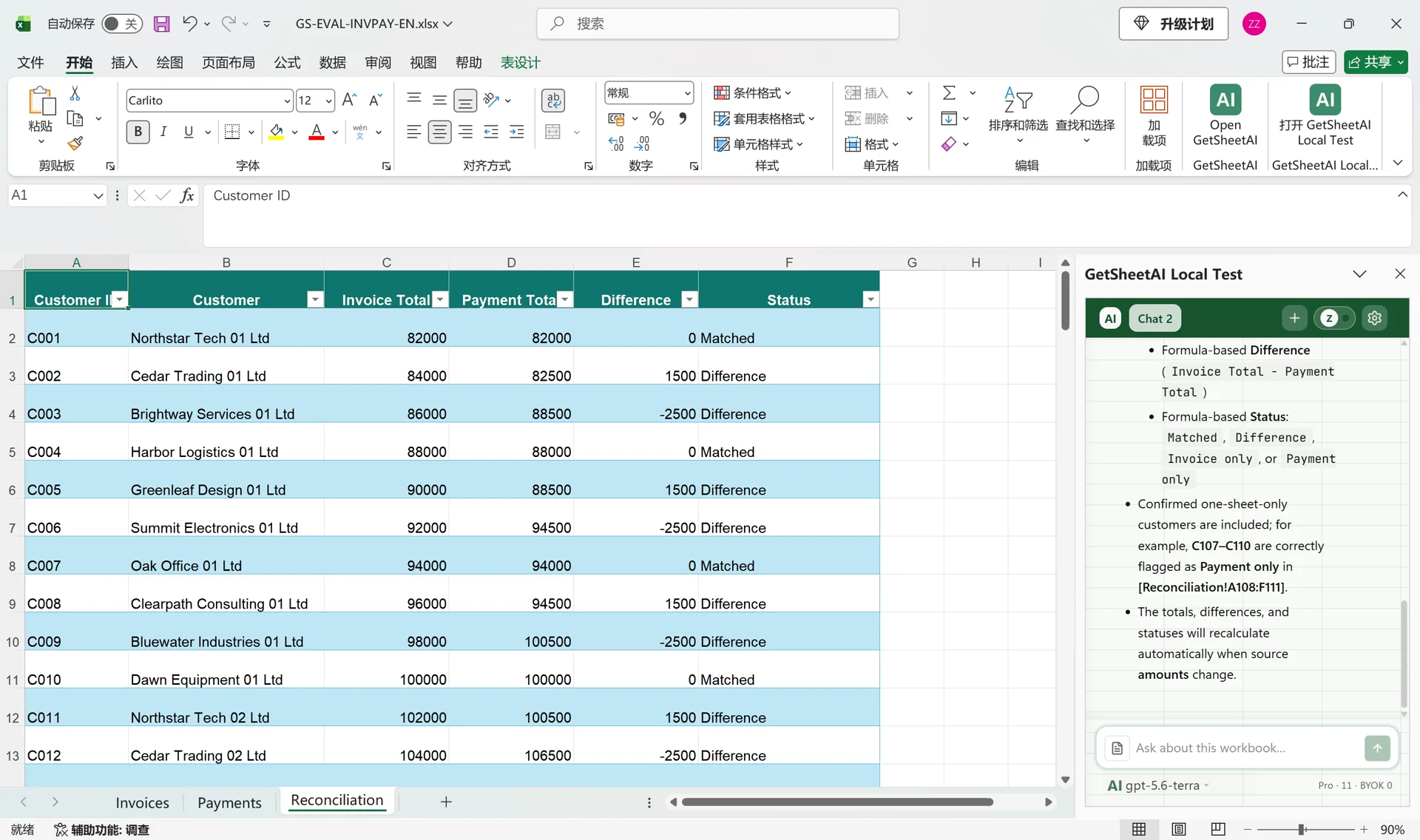
If the next step is to match invoices with payments rather than compare versions, use the invoice reconciliation workflow. Multiple payments per invoice require different rules from this one-record-per-ID example.