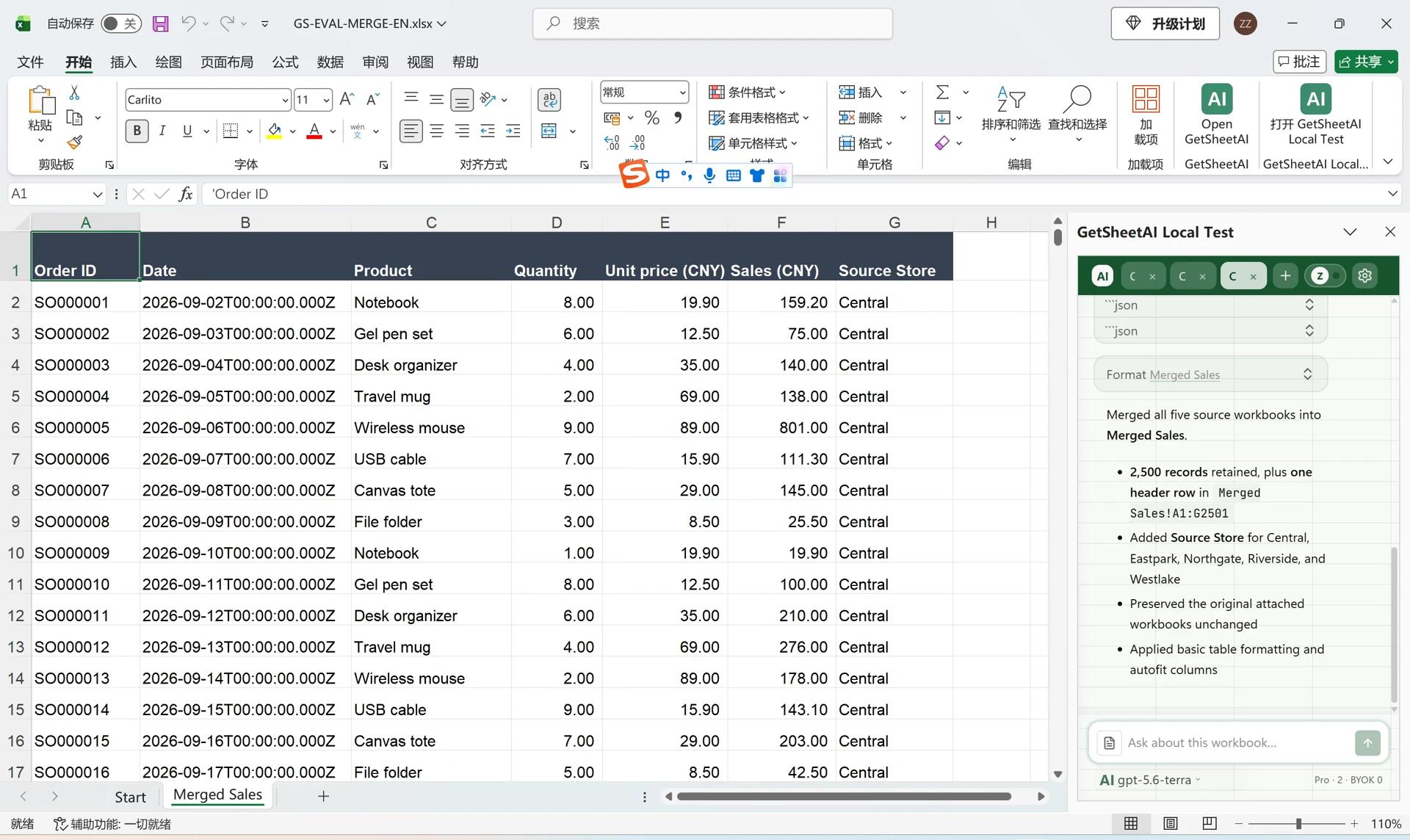
Excel Automation Without Macros: 7 Repetitive Tasks You Can Delegate to AI
You don't need VBA to automate weekly report cleanup, formula filling, categorization, and summaries. Seven concrete Excel tasks you can hand to an AI sidebar assistant — and what to check afterward.
Excel automation used to mean one thing: learn VBA, record macros, maintain them forever. That's still a valid path (we compare the two approaches honestly in VBA vs. AI add-ins), but for most repetitive spreadsheet work there's now a lower-friction option: describe the task in plain language to an assistant that reads and writes your workbook directly.
Here are seven tasks where that works today — each one something AI for Excel does inside your sheet, not in a chat window beside it.
Quick answer
You can automate Excel without VBA by combining Power Query for repeatable imports, Office Scripts or Power Automate for scheduled flows, and an AI Excel add-in for interactive tasks such as cleanup, formulas, classification, summaries, and reports. Choose the method based on whether the job is fixed or changing—not on which tool sounds newest.
| Type of work | Best starting point |
|---|---|
| Repeat the same import and transformation | Power Query |
| Run on a schedule or external trigger | Power Automate + Office Scripts |
| Record a stable sequence of workbook actions | Office Scripts |
| Handle changing layouts or business-language rules | AI Excel add-in |
| Perform one simple calculation | Normal Excel formula |
1. Weekly report cleanup
The same export lands every Monday with the same problems: header junk rows, mixed date formats, numbers as text. Instead of the same 20 minutes of fixes:
"Clean this export the usual way: delete the first 3 non-data rows, convert the Date column to real dates, fix numbers stored as text, and trim all whitespace."
The steps run in sequence, and the summary tells you exactly what changed. (Full manual checklist, if you prefer doing it by hand: How to Clean Messy Excel Data.)
2. Filling formulas down intelligently
Adding a calculated column to 20,000 rows means writing the formula once and filling it down with correct references. Ask for it directly:
"Add a Margin column: (Revenue − Cost) / Revenue, blank when Revenue is 0, formatted as a percentage."
You get a real Excel formula in every row — checkable and editable, as covered in plain-English formula generation — not opaque pasted values.
3. Row-by-row categorization
Classifying rows against rules is the definition of tedious: "mark as Clear if stock > 90 days and margin < 10%, otherwise Keep, and note why." An AI assistant applies your rules to every row and writes both the label and the reasoning — so a colleague can audit any individual decision.
4. Summary tables on demand
"Summarize sales by region and month, top 5 products per region, one sheet per quarter" is an afternoon of pivot-table wrangling or one instruction. The assistant reads the source range, computes the aggregation deterministically, and writes a structured summary sheet.
5. Outlier and anomaly flagging
"Flag rows where this month's cost deviates more than 30% from that supplier's 6-month average."
This is the kind of check people skip because setting it up is slower than eyeballing — until eyeballing misses one. Automating it turns a judgment call into a repeatable rule.
6. External data lookups
Filling a column with currency conversion rates, or checking product names against public listings, normally means a browser tab and a lot of copy-paste. An assistant with web lookup can fetch the value, cite where it came from, and write it into the cell — keeping the source next to the number.
7. Chart and report generation
"Bar chart of revenue by channel, sorted descending, with data labels, titled Q2 Channel Revenue."
One instruction, one correctly-labeled chart — no clicking through dialogs.
What to check after any automated run
Automation without verification is just faster mistakes. Whatever tool you use:
- Diff the change. What cells changed? AI for Excel logs each change and keeps a pre-change snapshot with one-click rollback.
- Verify totals. Key sums before vs. after.
- Spot-check rows. Three random rows against the rule you stated.
The reason we're comfortable recommending automation at all is that the add-in verifies its own writes — it reads back what it wrote and reports formula errors immediately, instead of leaving them in the sheet.
A reusable prompt for safer automation
Vague requests create vague results. A useful automation instruction names five things: the source, the rule, the destination, the exceptions, and the check.
"On the Orders sheet, clean rows 2 onward. Convert Order Date to real dates, keep SKU as text, calculate Margin as (Revenue-Cost)/Revenue, leave Margin blank when Revenue is zero, write a Status column for any row that cannot be fixed, and verify the final row count and revenue total."
That prompt is reusable because it defines what success means. Change the sheet or business rule next week without rewriting a macro.
When not to use AI automation
- A regulated process must run identically without human review.
- The task needs event handlers, custom dialogs, or offline execution.
- The source is not accessible to the add-in.
- The instruction contains a business decision that has no documented rule.
- A wrong result cannot be detected with totals, constraints, or spot checks.
In those cases, use a governed script or keep a human approval step. Automation should shorten the work, not remove accountability.
Official references
- Microsoft: Office Scripts in Excel
- Microsoft: Use flows with Excel
FAQ
Can I automate Excel without knowing VBA?
Yes. Modern AI add-ins execute described tasks — cleanup, formulas, summaries, categorization — directly in the workbook. VBA remains better for scheduled, unattended, or UI-driven automation; see our comparison.
Is AI Excel automation safe for important files?
Use a tool with a safety net. AI for Excel snapshots the workbook before every change, verifies written results, and supports one-click rollback — so an automation mistake is recoverable, not fatal.
What Excel tasks should NOT be automated?
One-off judgment calls with no clear rule, and anything where you can't state what "correct" looks like. If you can't verify the output, don't automate it.