How to Open CSV Files in Excel Without Breaking Dates, Leading Zeros, or Encoding
Stop Excel from eating leading zeros, mangling dates, and garbling UTF-8 when you open CSV files. The import workflow that preserves your data, plus AI-assisted cleanup for damaged imports.
Double-clicking a CSV file is the most dangerous common action in Excel. It works — the file opens, the data appears — and three specific kinds of damage may already have happened:
- Leading zeros are gone. ZIP code
02138became2138; product code000451became451. - Things that look like dates became dates. The gene name
MARCH1, the fraction1/2, the code3-14— all silently converted. - Non-ASCII text got garbled.
MüllerbecameMüllerbecause the file was UTF-8 and Excel guessed a legacy encoding.
None of these show an error. You find out when a lookup fails or a customer email bounces. Here's how to import CSVs so this never happens.
Quick answer
Do not double-click an important CSV. In Excel, use Data → From Text/CSV, confirm the delimiter and UTF-8 encoding, choose Transform Data, and explicitly set identifiers such as ZIP codes, SKUs, account numbers, and phone numbers to Text before loading. Then verify row count, column count, and a few known values before saving as XLSX.
The safe way: import, don't open
Use Data → Get Data → From Text/CSV (Power Query) instead of double-clicking:
- Excel shows a preview with a detected File Origin (encoding). If you see garbled characters, switch it to 65001: Unicode (UTF-8).
- Click Transform Data to control column types, or use Load To… for direct loading.
- In the Power Query editor, set each column's type explicitly — and set code-like columns (ZIP, SKU, phone) to Text, not number.
The legacy Text Import Wizard (still available under File → Options → Data → Show legacy data import wizards) achieves the same: choose Delimited, pick the delimiter, and set column formats — Text for anything with leading zeros.
Fixing a CSV that's already damaged
If the file was already opened-and-saved and the damage is baked in:
Leading zeros, when the correct length is known:
=TEXT(A2, "00000")
restores 5-digit ZIP codes. For variable-length codes there is no formula fix — re-import from the original file.
Dates that became numbers (you see 45678 instead of a date): apply a date number format; the underlying serial is usually intact.
Text that became dates (MARCH1 shows as 1-Mar): the original string is unrecoverable from the cell alone. Re-import with that column typed as Text.
Mojibake (ü, â€" sequences): re-import with UTF-8 selected. Find-and-replace repairs are possible for a handful of characters but unreliable at scale.
Delimiter surprises
In many European locales the list separator is ;, so a comma-delimited file opens as one giant column (or vice versa). In Power Query, set the delimiter explicitly in the preview dialog. For a one-off fix, Data → Text to Columns re-splits a single-column import.
Quoted fields are the other classic: a description containing commas must be quoted in the source; if the exporter didn't quote properly, columns shift for those rows. Shifted rows are easy to spot by checking a column that should have a consistent type — e.g. =ISNUMBER(E2) suddenly returning FALSE mid-file.
Protect long identifiers and scientific notation
Excel stores numbers with up to 15 significant digits. A 16-digit account or tracking number imported as numeric data can lose precision even if the cell still looks plausible. Treat identifiers as text during import; do not try to repair a rounded identifier afterward.
Also inspect values such as 1E10, 12-3, and codes beginning with +. They may be interpreted as scientific notation, dates, or formulas. If the column is an identifier rather than a quantity, set its type to Text before loading.
Five checks before you save the workbook
- Compare the imported row count with the source system or a raw-text line count.
- Confirm the expected number of columns and inspect rows containing quoted commas.
- Check one leading-zero identifier and one identifier longer than 15 digits.
- Sort or filter the date column to expose text values and locale mistakes.
- Search for replacement characters such as
�and common mojibake sequences such asÃ.
Save the validated workbook as .xlsx. Keeping the original CSV unchanged gives you a source to re-import if a type choice was wrong.
Where an AI assistant fits
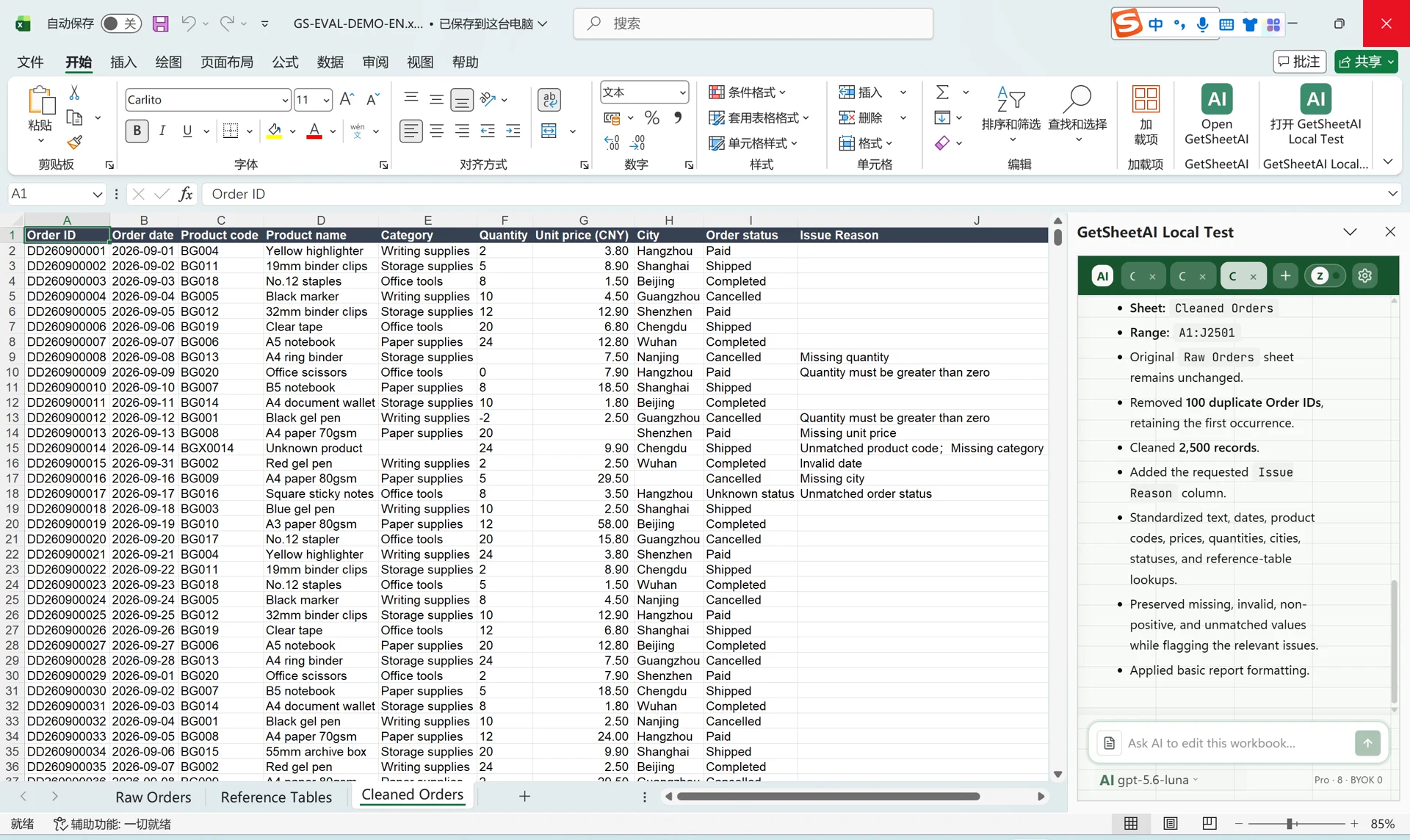
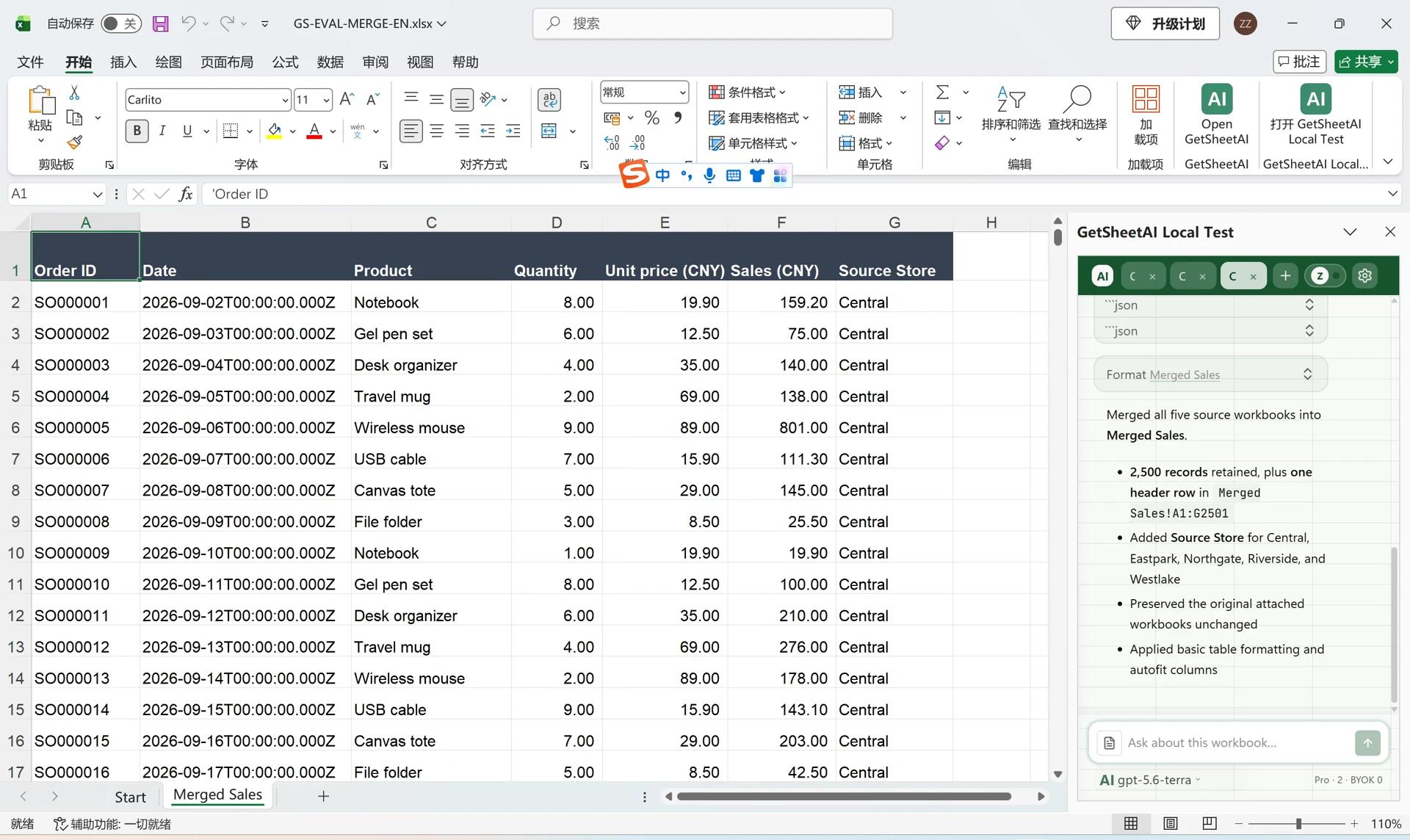
After a messy import, you're often left with a mixed-damage sheet: some numbers as text, some dates in two formats, a shifted block of rows. Describing the fix beats doing it column by column. With AI for Excel in the sidebar:
"Column A should be 5-digit ZIP codes stored as text — restore missing leading zeros. Column D should be dates — convert any text dates to real dates in YYYY-MM-DD. Flag rows where columns look shifted."
The add-in reads the range, applies the conversions, and — because it verifies what it writes and backs up before changing anything — you can check the summary and roll back if the fix wasn't what you wanted. For the broader cleanup workflow, see the 8-step data cleaning checklist.
Official reference
Microsoft documents the same import path and specifically notes that a column containing leading zeros should be imported as text: Import or export text (.txt or .csv) files.
FAQ
Why does Excel remove leading zeros from CSV files?
Opening a CSV directly makes Excel guess each column's type. Digit strings are treated as numbers, and numbers don't have leading zeros. Import via Get Data (or the legacy wizard) and set those columns to Text to preserve them.
How do I open a UTF-8 CSV correctly in Excel?
Use Data → Get Data → From Text/CSV and set File Origin to 65001: Unicode (UTF-8) in the preview. Saving from the source system as "CSV UTF-8" (with BOM) also helps Excel detect it on double-click.
Can I stop Excel from converting values to dates?
Yes — import with the affected column typed as Text. In Excel 365, File → Options → Data → Automatic Data Conversion also lets you disable automatic date conversion on load.