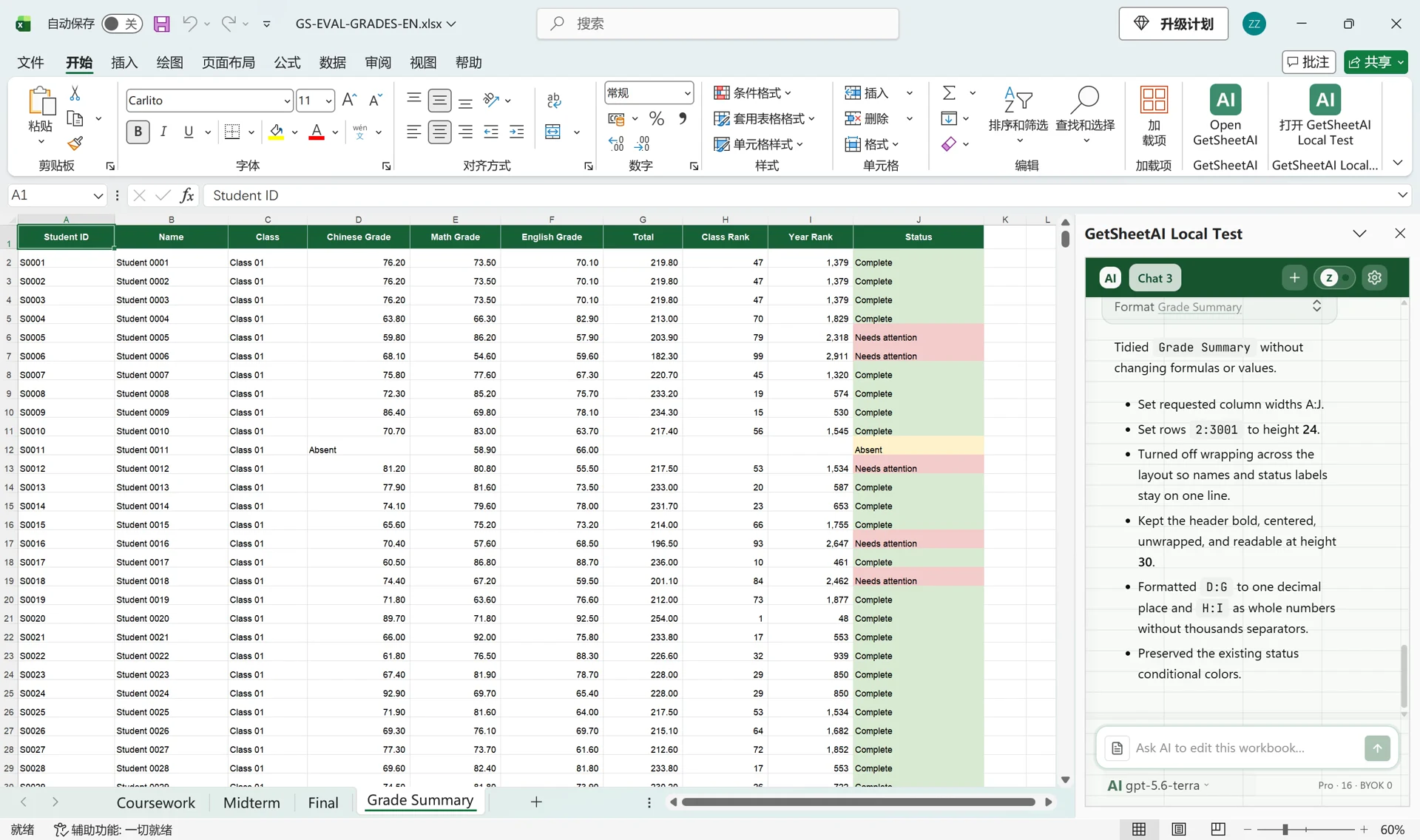
AI Excel for Education: Grades, Attendance, Scheduling, and Reports with GetSheetAI
See how GetSheetAI is developing education-focused Excel workflows for student rosters, gradebooks, attendance, exams, scheduling, staff workload, and school reports—using plain-language instructions instead of complex formulas and macros.
Schools run on people, but a surprising amount of school work still runs through spreadsheets. Teachers calculate grades. Administrators clean student rosters. Exam teams assign invigilators. Finance staff reconcile fees and budgets. The work is important, yet much of it still depends on copied formulas, fragile macros, and repeated manual checks.
GetSheetAI is developing an education-focused Excel capability for these everyday workflows. The goal is simple: for most routine education spreadsheet tasks, users should not need to build a complicated formula or maintain a VBA macro. They should be able to describe the result in ordinary language, let GetSheetAI work inside the workbook, and receive a structured, checked, and readable result.
“Create a new sheet, total each teacher’s invigilation hours and number of sessions, ignore blank cells and support-only entries, then create a bar chart.”
That is the experience we are building: conversational Excel work, from the original table to a finished result.

GetSheetAI keeps the interface simple: describe the task, review the rules, and receive a usable spreadsheet result.
Why education needs more than a general AI chat box
A general AI assistant can explain a formula, but education data has its own vocabulary and rules. “Student ID,” “learner number,” and “candidate number” may refer to the same kind of field. An absence code cannot always be treated as a zero. A final grade may depend on weighted coursework, examination results, missing-work rules, and a school’s own rounding policy.
The education module is therefore designed as an optional workflow layer rather than a collection of fixed buttons. It loads education rules only when an education task is recognized, while the main GetSheetAI interface remains simple. The user sees a task, any necessary confirmation, and the finished result—not a new control panel full of specialist settings.
The development work combines four parts:
- an education workflow engine that identifies the kind of task;
- a field dictionary that recognizes common aliases and multilingual headers;
- reusable recipes for grades, attendance, exams, schedules, and reports;
- consistent output templates with formulas, formatting, evidence, and exception rows.
1. Clean and combine student rosters
Student lists often arrive from several classes or systems. One file uses “Student No.”, another uses “ID”, and a third stores the same student twice with slightly different names. GetSheetAI can help users:
- standardize names, student numbers, classes, courses, and dates;
- find duplicate or incomplete student records;
- merge several class lists into one master roster;
- separate uncertain matches into an exception sheet for human review;
- prepare a clean table for later import into an SIS or LMS.
An ordinary instruction could be:
“Combine the three class lists, use student number as the primary key, keep the newest phone number, and put uncertain duplicates on a separate sheet.”
Instead of stopping the whole task because five rows are unclear, the reliable workflow completes the safe rows and lists the exceptions that still need attention.
2. Calculate and check gradebooks
Gradebooks are one of the most common sources of spreadsheet mistakes. A formula may miss the last ten students, a percentage may be stored as text, or an absent student may accidentally receive a zero.
The education workflow is designed to support:
- weighted grades and configurable grading bands;
- missing, exempt, late, and absent-result handling;
- formula consistency checks across all student rows;
- impossible values, missing marks, and sudden score changes;
- class summaries, student-level reports, and readable grade sheets.
For example:
“Coursework is 40% and the final exam is 60%. Do not count ‘EX’ as zero. Calculate the final grade, assign A–F using the rules sheet, flag inconsistent formulas, and create a formatted class summary.”
Critical totals should not depend on the model guessing a number. GetSheetAI uses deterministic spreadsheet calculations for the result, then reads the written cells back and checks them.
3. Analyze exams and questions
With item-level data, GetSheetAI can help turn a raw exam export into a useful teaching report. Planned education workflows include:
- score distributions and pass-rate summaries;
- comparisons between classes, subjects, or examination periods;
- topic or knowledge-point mastery;
- question difficulty, discrimination, and distractor distribution;
- lists of students or questions requiring review.
The tool should not invent item statistics when only final scores are available. If the workbook lacks question-level responses, the output explains what can be calculated and what source data is still needed.
4. Summarize attendance and identify exceptions
Attendance sheets are easy to collect and surprisingly difficult to audit. Different teachers may use different codes, some dates may be missing, and a copied formula may quietly exclude a month.
GetSheetAI can organize attendance data into:
- daily, weekly, and monthly summaries;
- absence, tardiness, and attendance-rate totals;
- consecutive-absence warnings;
- invalid codes and missing-record lists;
- class and student attendance reports.
A teacher or administrator can ask:
“Summarize attendance by student for this term, treat L as late and A as absent, flag three consecutive absences, and keep unknown codes in an exception table.”
The result is not just a paragraph in chat. It is written back as a usable Excel table with clear headers, number formats, and a concise result summary.
5. Build invigilation and staff-workload reports
Exam scheduling and staff workload are excellent examples of tasks that previously encouraged people to write one-off macros. A real instruction can be as specific as:
“Create a new sheet and total each person’s invigilation hours and number of sessions. Chinese is 2 hours, history 1 hour, mathematics 2 hours, ethics 1.5 hours, English 2 hours, chemistry 1 hour, physics 1.5 hours, and PE 2 hours. Ignore blanks and ‘support’ entries, then create a bar chart.”
The intended closed loop is:
- read the current schedule;
- normalize names and subject labels;
- apply the stated duration rules;
- aggregate hours and session counts;
- write a new summary sheet;
- apply basic professional formatting;
- create the requested chart;
- verify totals and report any exceptions.
This is where conversational Excel is more useful than simply generating a formula: the user asks for the business result, not the implementation details.
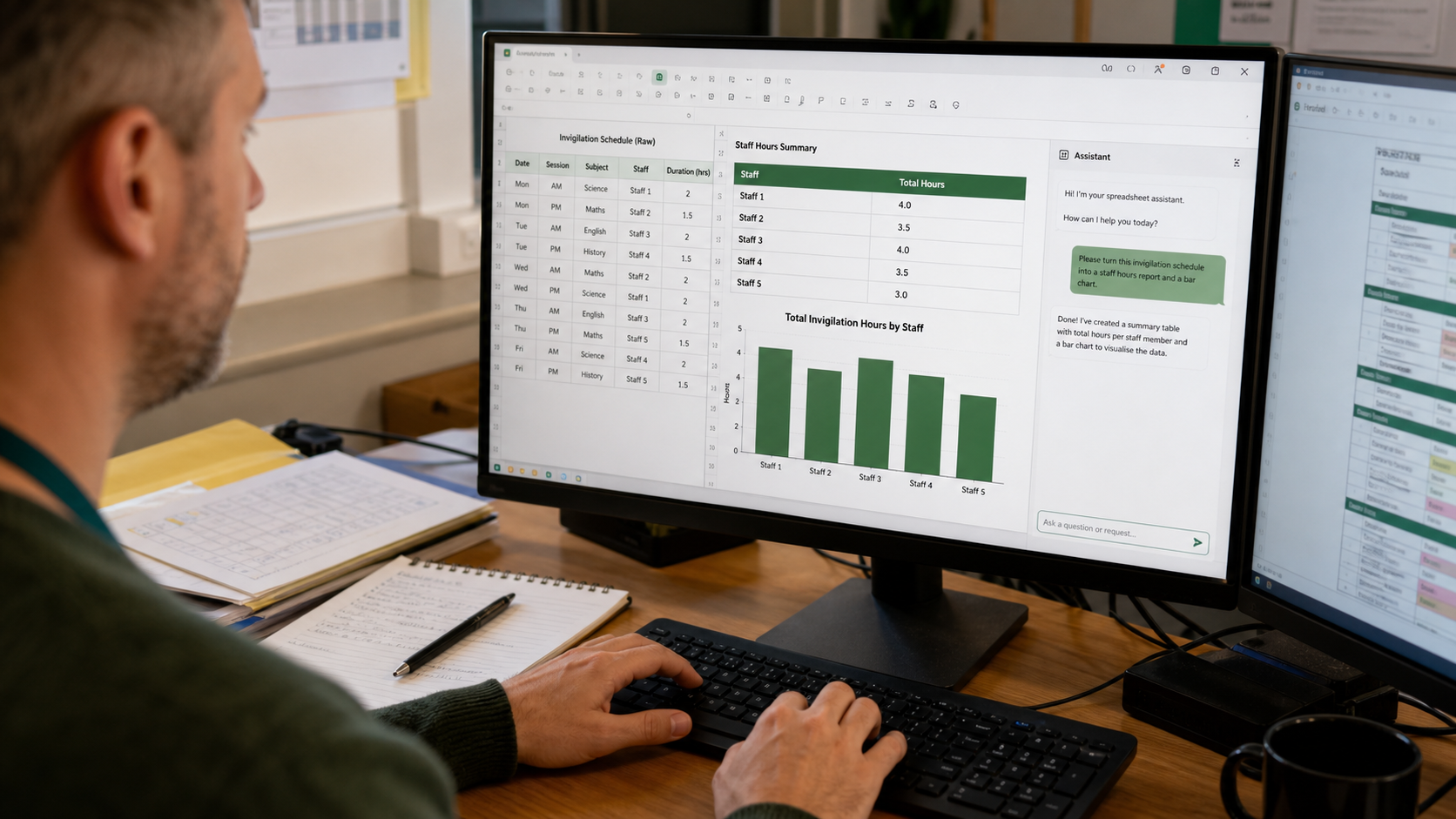
A complete workflow can read the schedule, apply duration rules, build the summary sheet, format it, create the chart, and verify the totals.
6. Check schedules, rooms, and exam conflicts
Education scheduling contains many overlapping constraints: teachers, classes, rooms, periods, capacity, subjects, and invigilation assignments. The education module is being designed to check for:
- one teacher assigned to two places at the same time;
- one room assigned to overlapping classes or exams;
- class or capacity conflicts;
- missing invigilators and unassigned sessions;
- staff workload that exceeds a stated rule.
GetSheetAI does not need to replace a full scheduling system. Its practical role is to inspect an exported schedule, identify conflicts with cell references, and create a clean correction list.
7. Prepare school operations and management reports
Education work is not limited to classrooms. Schools and universities also use Excel for fees, refunds, budgets, purchasing, payroll, textbooks, laboratory equipment, admissions, credits, GPA checks, graduation reviews, and accreditation evidence.
The same workflow approach can support:
- fee-payment, arrears, and refund reconciliation;
- department budget versus actual reports;
- textbook and asset inventory warnings;
- teaching hours and staff allowance summaries;
- admissions, enrollment, credit, GPA, and graduation checks;
- fixed-format reports across classes, departments, or campuses.
The purpose is not to create a separate button for every school process. Users keep the same conversation box and describe the required output. The specialist rules operate behind the scenes.
A simpler alternative to complicated macros and formulas
Macros and formulas remain valuable. A well-written macro is excellent for a stable, unattended process that must run the same way every day. Formulas are also the right choice when users need live calculations they can inspect and edit.
But many education tasks change slightly every week. The source columns move, class names change, a new absence code appears, or the report needs one extra grouping. Maintaining a macro for every variation becomes expensive.
For most interactive education work, the simpler route is:
Tell GetSheetAI what you need in normal language, review any necessary rule, and let it read, calculate, write, format, and check the workbook.
In other words, teachers and administrators can spend less time fighting with VBA and nested formulas. One GetSheetAI conversation can complete the whole spreadsheet workflow.
Reliability comes before automation
Education data can affect real people, so speed is not enough. The workflow is designed around several safeguards:
- preserve the source data and write major results to a new sheet;
- create a recoverable snapshot before workbook changes;
- calculate important totals with deterministic logic;
- read written cells back and verify the result;
- continue safe rows while placing uncertain rows in an exception sheet;
- show the finished result, calculation rules, source references, and next actions;
- support larger workbooks through paged reading and writing rather than one oversized request.
Sensitive decisions must stay with people. GetSheetAI may highlight evidence and inconsistencies, but it should not automatically decide student discipline, admissions, special-needs status, or a learner’s ability.
What the current development means for users
GetSheetAI already provides the underlying workbook abilities needed for this direction: reading ranges, creating and editing sheets, formulas, data analysis, charts, formatting, verification, snapshots, rollback, and large-workbook task handling. The education-specific work adds consistent field recognition, reusable education rules, exception handling, and finished report structures on top of that foundation.
The aim is not to make Excel look more complicated. It is the opposite: keep the same simple GetSheetAI interface and move the complexity into a dependable background workflow.
Frequently asked questions
Can GetSheetAI replace Excel macros for teachers?
For many everyday, interactive tasks—cleaning rosters, calculating grades, summarizing attendance, checking schedules, and building reports—it can reduce or remove the need for a custom macro. Existing VBA modules and unattended event-driven automation are different use cases and may still require VBA.
Does GetSheetAI change the original education data?
For major transformations, the safer pattern is to preserve source data and write results to a new sheet. Workbook snapshots and rollback provide another recovery layer.
Can it handle a large gradebook or attendance file?
The workflow is designed to read and write large tables in pages, keep progress state, and verify completed sections. Actual limits still depend on Excel, the workbook structure, and the selected model.
Is it safe to automate student decisions?
Automation is appropriate for calculations, validation, formatting, and evidence gathering. High-impact decisions about students should always remain subject to authorized human review and the institution’s data policies.