Calculate Work Hours in Excel: Overnight Shifts, Breaks and AI
Turn 3,000 attendance records into an Excel hours report: handle overnight shifts, flag missing punches and build employee totals that recalculate.
Real screenshots from a local developer demo using simulated data, not customer records. The original app interface is preserved. Short videos include sped-up processing.
Subtracting clock-in from clock-out seems easy until a shift crosses midnight, a break is recorded in minutes, or a missing punch turns into a misleading number.
For time-only shifts shorter than 24 hours, calculate the elapsed time across midnight, subtract the break, and keep missing punches separate from valid hours. Then aggregate by employee ID. This GetSheetAI developer case uses 3,000 simulated attendance records for 100 employees.
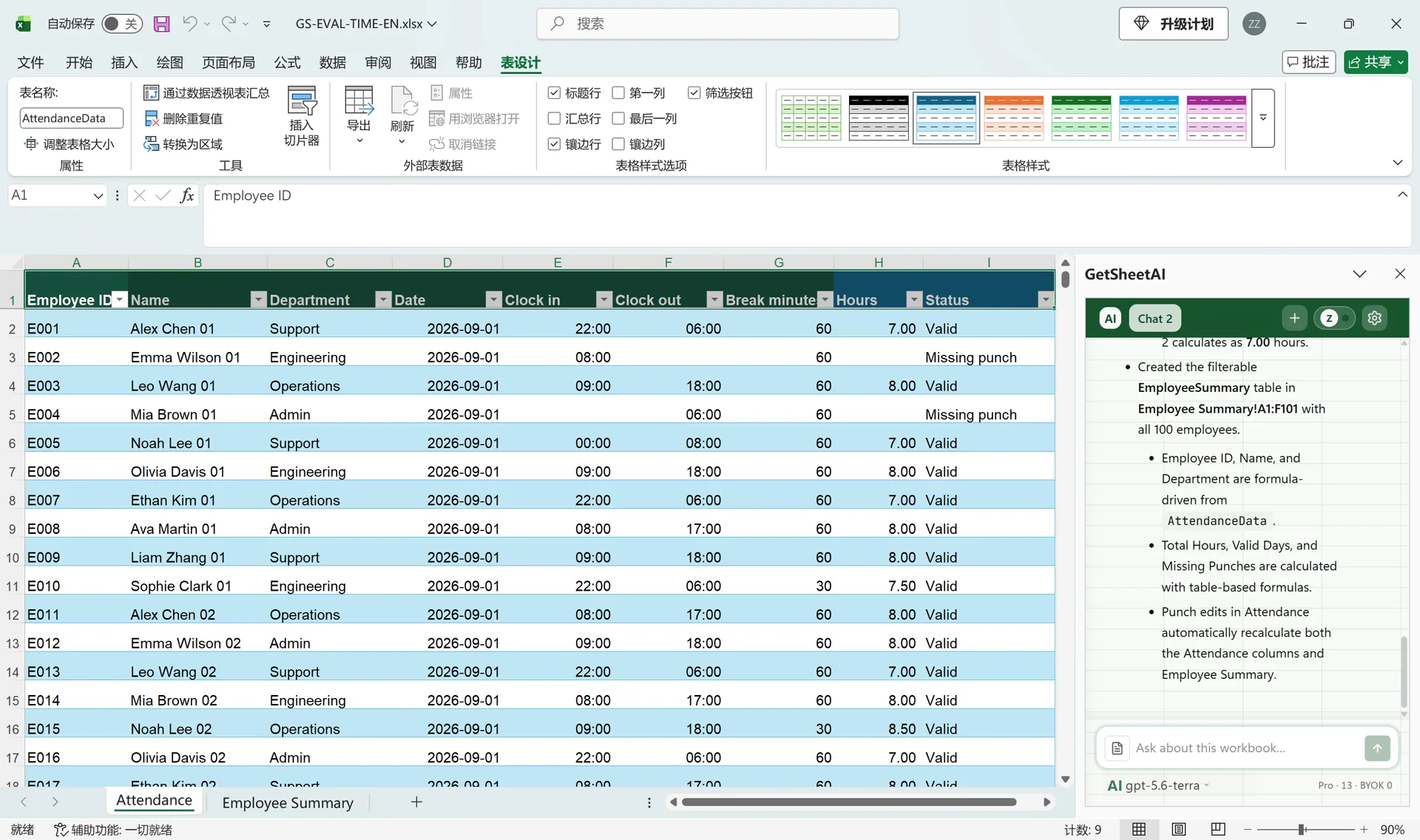
What the finished workbook contains
The original attendance fields remain, with calculated hours and a status column added. A separate employee summary shows total hours, valid attendance records and missing-punch records. The case contains 80 missing-punch rows, which remain visible for correction rather than being silently filled.
In the dynamic check, one shift changed from 7 hours to 8. The corresponding employee's total changed from 210 to 211, while the source was then restored. This verifies an editable report rather than a one-time pasted answer.
Prepare the attendance data
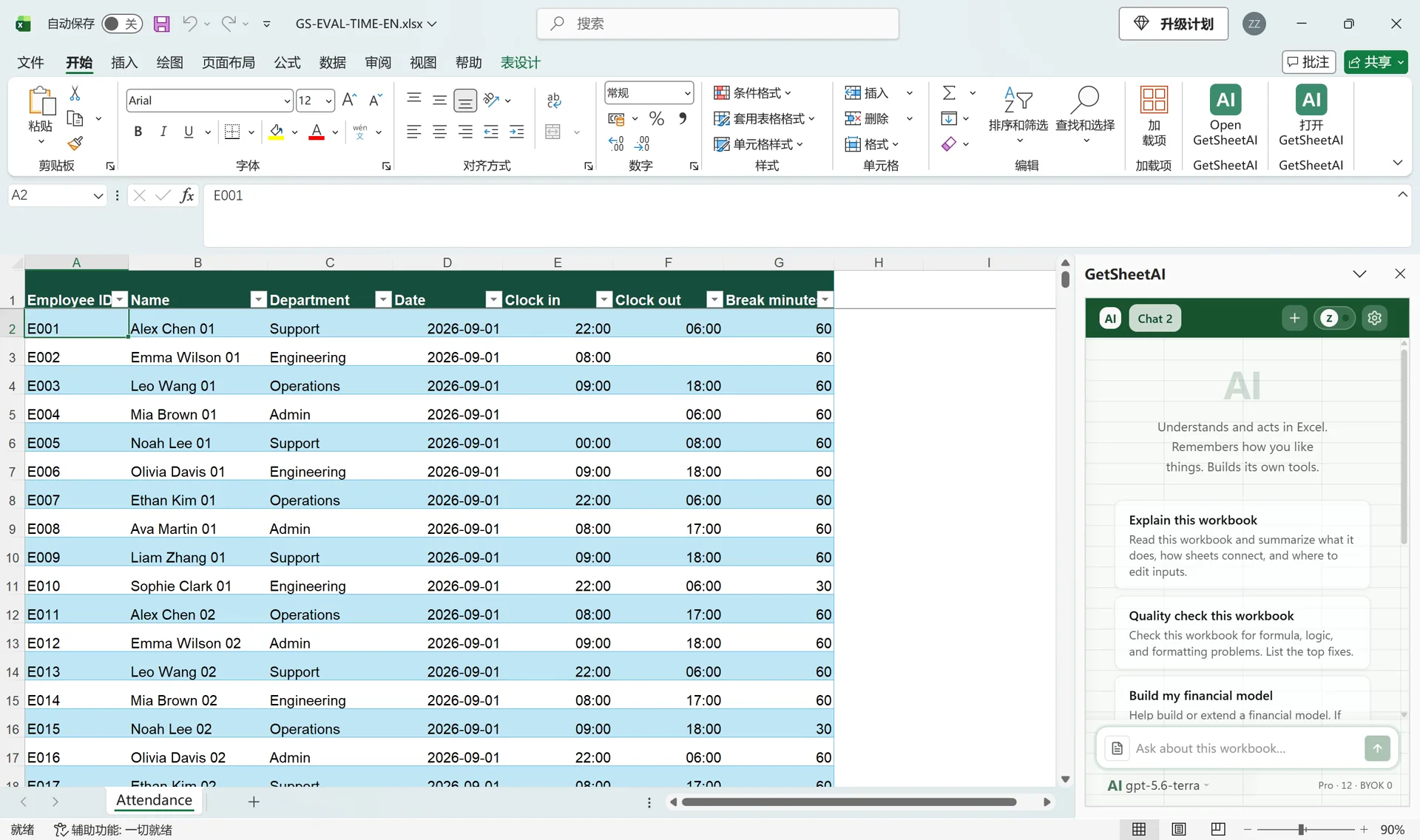
Use employee ID, name, department, work date, clock-in time, clock-out time and break minutes. Identify employees by ID rather than name. Store clock times as Excel time values, and distinguish a blank cell from midnight: midnight is a legitimate time value of zero.
Decide whether one row means one workday or one attendance interval. If an employee has several rows on one date, counting rows does not count distinct working days. The example's daily records support its summary; other layouts need a different counting rule.
Give the plugin an ordinary request
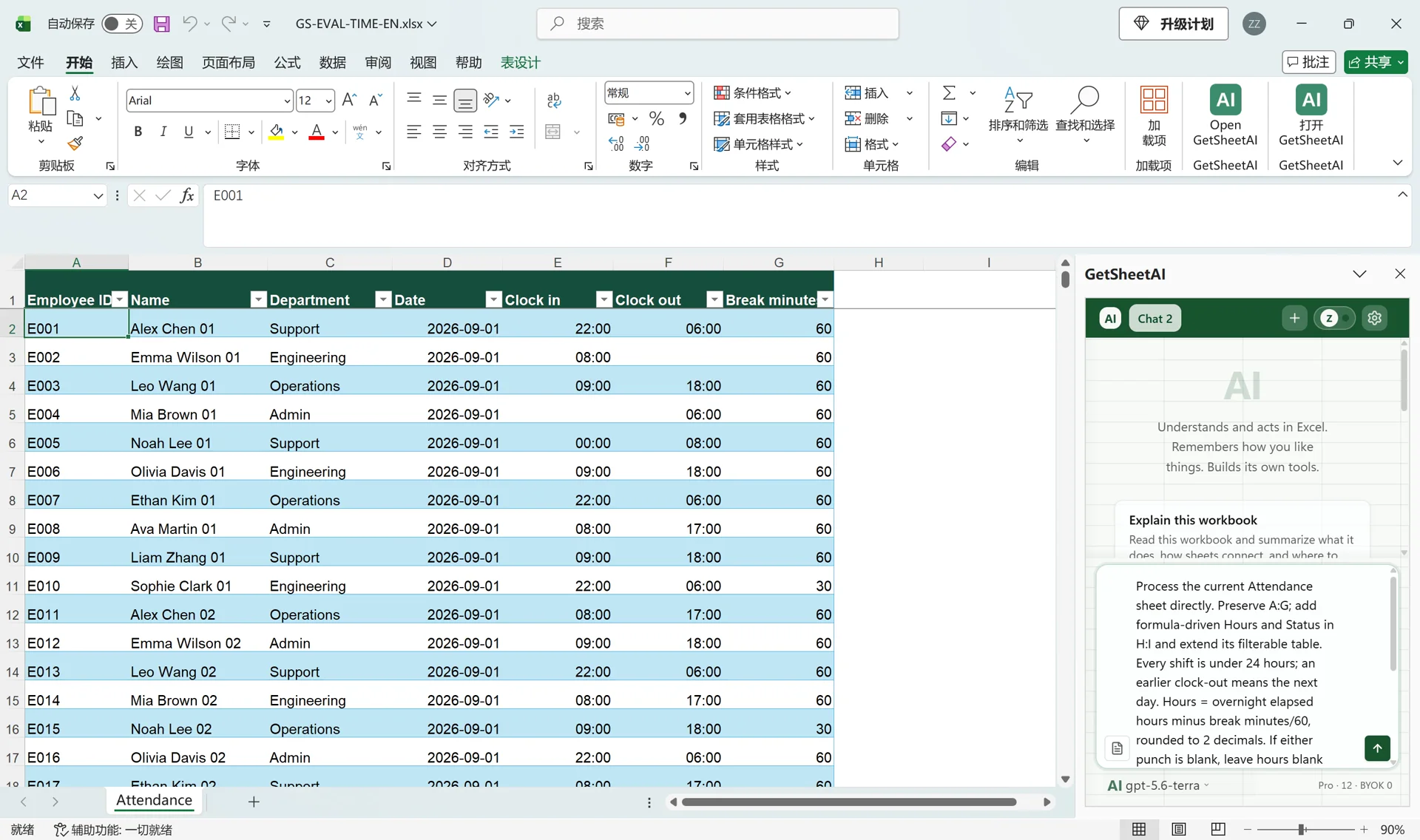
Open the sheet in Excel, open GetSheetAI and start a new conversation. You can adapt this request:
Calculate working hours for each attendance record, including overnight shifts and subtracting break minutes. Flag missing clock-in or clock-out values instead of guessing. Keep the original fields. Create an employee summary with total hours, valid records and missing-punch records, using formulas that update when I correct a time.
You do not need to name IF, MOD or SUMIFS in the request. Those functions are useful when inspecting how the generated workbook calculates its results.
Understand the hours calculation
Suppose C2 is clock-in, D2 is clock-out and E2 is break minutes. An illustrative English Excel formula is:
=IF(OR(C2="",D2=""),"",MOD(D2-C2,1)*24-E2/60)
The missing-value check runs first. MOD handles a time crossing midnight, multiplying by 24 converts days into hours, and dividing break minutes by 60 gives the same unit. For 22:00 to 06:00 with a 60-minute break, the result is 7 hours. Midnight must not be mistaken for a missing punch.
Use this pattern only for known shifts shorter than 24 hours. Identical clock times could mean zero hours or a full day; the formula cannot decide that for you. For multi-day shifts, use complete start and end date-times. Negative results, breaks longer than a shift and implausibly long intervals should be flagged for review.
Summarize by employee without hiding exceptions
Aggregate valid hours by employee ID, using a separate status column to distinguish valid and missing-punch records. SUMIFS can total hours with both employee and status criteria; COUNTIFS can count records meeting those same conditions.
The recorded verification covered 3,000 source rows, 100 employee summary rows, both overnight and midnight cases, all source values and the 80-row missing-punch filter. Corrections should update the detail and the employee total together.
Before reusing your own report, check one daytime shift, one overnight shift, one valid midnight time and one incomplete pair. Correct one time and confirm that exactly the intended employee total changes.
Common questions
Does this calculate payroll or statutory overtime?
This case calculates attendance hours under the stated rules. Overtime thresholds, paid breaks, holiday premiums, rounding and daylight-saving adjustments require separate rules. The recorded example does not verify payroll compliance.
Can I append next month's attendance?
Check that the formulas and summary ranges include the new records. An Excel Table can help with expanding source data, but verify the actual references rather than assuming every new row is included.
What if times are stored as text?
Normalize the source first. The data-cleaning guide explains the preparation; the AI formula guide shows how to describe a calculation and verify it.